I was asked to create a stencil for an upcoming event, and the company provided their logos in an file. When I imported the file into LightBurn (v1.7.08), I ran into issues using the Preview tool.
Problem Summary:
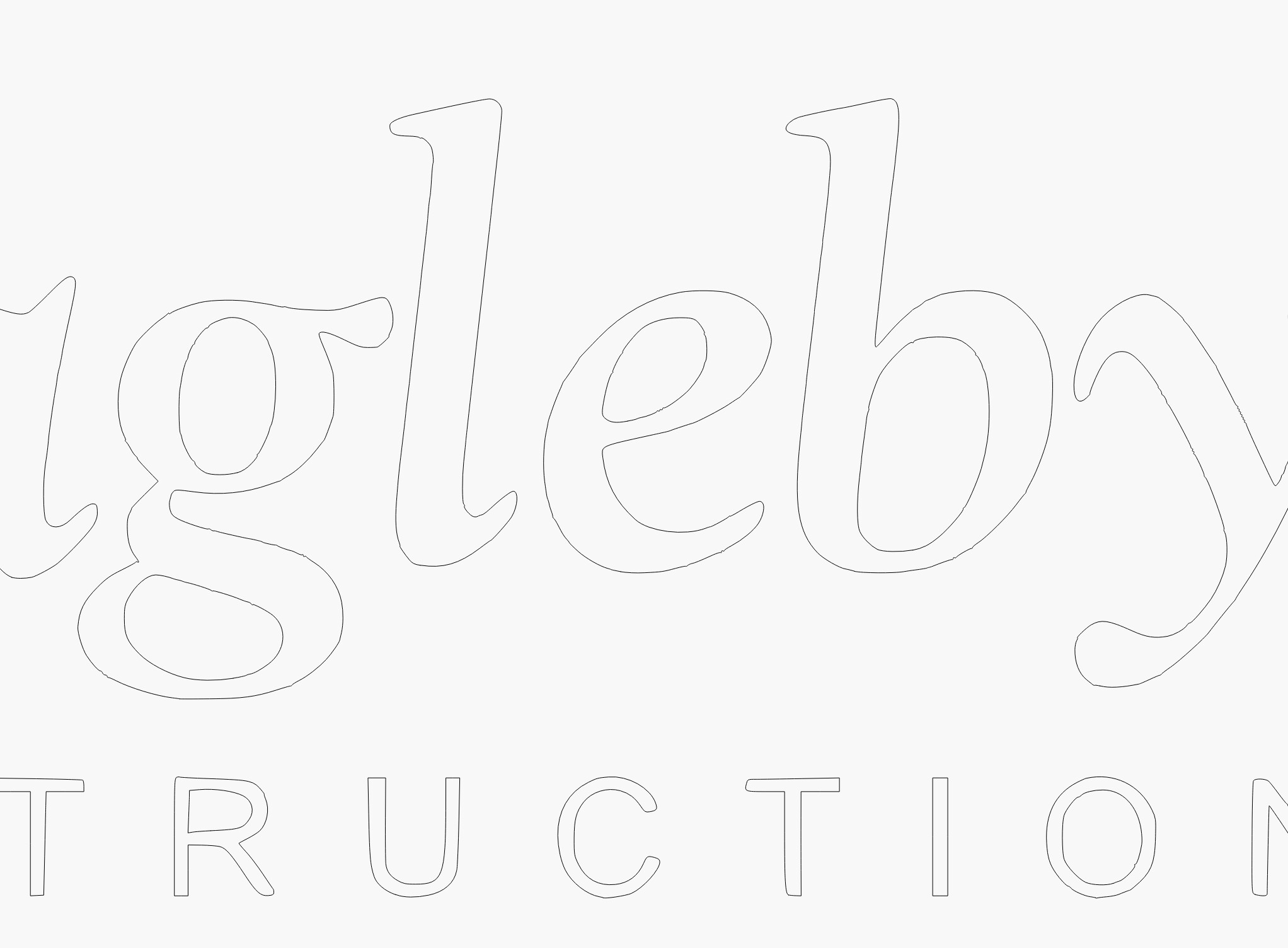
• The original SVG appears to have overlapping or crossed lines—especially visible in letters like “g” and “e” when zoomed in.
• These crossover points show up in the Preview but are not clearly visible in the main workspace, making them difficult to resolve.
• My workaround was to manually trace each letter using the Draw Lines tool on a new layer, then discard the original import.
Stencil-Specific Adjustments:
• My version includes tabs on letters like A, G, E, B, O, D to preserve letter integrity during cutting.
Suspected Cause:
• I believe the issue stems from the original SVG file—possibly due to how paths were created or exported.
• I’m unsure if there’s a cleaner fix besides manual tracing.
Software Context:
• I’m using LightBurn 1.7.08, which has been the most stable for my workflow.
• I’ve tested version 2.0.03, but it still has bugs—particularly with displaying the laser head pointer for alignment, which is critical for my setup.
Request: If anyone has insight into resolving crossover line issues from imported SVGs—without resorting to manual tracing—I’d appreciate suggestions. I’ve included images and files for reference.


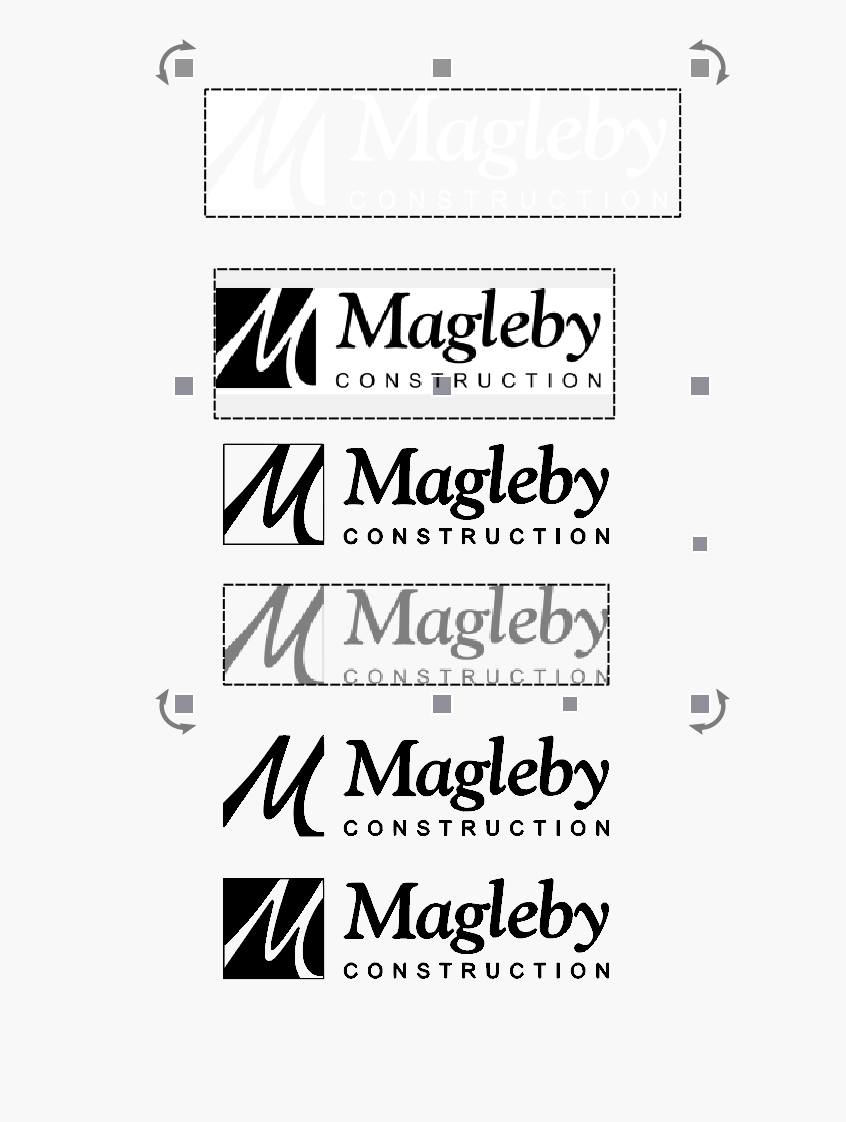
I may have misunderstood your problem, but as with this nice “original” logo you have, it is no problem to (auto)trace it yourself with much better (perfect) results in LightBurn.
Notice, 1,2 and 4 in my image are pictures, the rest are traced shapes.
You don’t need to trace it. Go to their website, and download the SVG logo in the upper left hand of the main screen.

- Open in LB
- Ungroup
- Auto Join
Logo.lbrn2 (55.3 KB)
edit: the SVG is missing the stacked letters BOND
2 Likes
This topic was automatically closed 30 days after the last reply. New replies are no longer allowed.