This thread has me confused. My time estimates are spot on.
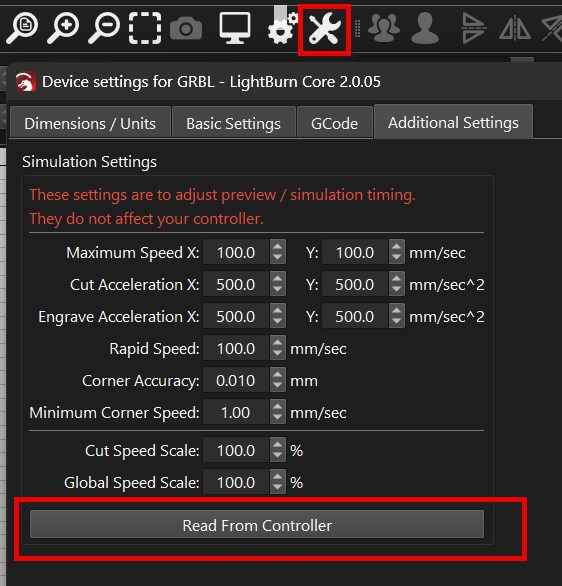
All I did was click on [Read From Controller]
When I read from the controller, it showed me that some of my settings on the laser had changed from the default. I spoke with the manufacturer and they confirmed the error. The error was the max speed. It’s corrected now and I’m going to have to re-run my material tests. My times are still questionable. I made some time tests with basic shapes and they look favorable. Further testing is needed because some settings are not making sense to me.
I cheated. My CNC ones are spot on too, although I have not tested Vcarve yet. I was using my Lightburn numbers for “illustrative purposes”.
Read the red text in the image above
These setting are to adjust preview / simulation timing.
They do not affect your controller.
You are correct that it is only reading the controller. However you can go into your console and change the values if you know a value is incorrect. I saw my max speeds were wrong (6000mm/min instead of 36000mm/min). They were somehow set to 1/6 of the correct max speed for my machine. This number was verified by the manufacturer. Because of this error, when I told it to run at speeds higher than 6000mm/min it topped out at 6000. Fixing the max speed settings allows the laser to run at a higher speed. That’s why I need to re-run my material tests for engraving. They never ran at the higher speeds. I was burning things at low power because it was running too slow. It’s a 48W diode so it’s easy to start a fire. I did start a fire and this may be why.
It sounds a lot like a mixup of your measurement units.
In the simulation settings (as far as I know) all time values are in mm/s / mm/s^2
What does your max speed show in the simulation settings after you set it to 36,000 mm/m?
My bad! I was only referring to the issue of the fields, not the topic itself. That’s important to me too, obviously.
This is new to me.
What is not new is the amount of useful information that appears in the bottom bar, which constantly provides suggestions while you are drawing/designing. It has already been useful to me, for example, to ungroup grouped objects, among other things.
There are always default settings or a software reinstallation to put everything back as it was… Just kidding! 
I had never thought of that.
Well mentioned!
Thanks for the clarification!
In my last job, which due to the low power of the laser requires several passes to make a decent cut in 4mm plywood, a lot of the time is spent on this phase of the project, but the planned and actual time seemed to coincide quite a bit.
In this case, the rest of the project was engraving, but relatively little on most pieces. Only one of them requires more time, but honestly, I didn’t pay attention to the planned and actual time.
Anyway, as soon as I have the availability I will “go back” to engraving images on canvas and tile, and at that time I will probably have to take the necessary time more into account.
The data read from the controller said 100mm/sec and the numerical value written in the controller was 6000, which is the speed in mm/min. I noticed that when I went to change the settings in the console. Once I corrected it in the console (set it to 36000) it read correctly as 600mm/sec when I re-read the controller data.
thanks for the clarification
With GCode machines, the Cut Speed% basically affects all the G1 cutting and engraving (any burning moves) in vector and image engraving. The Global Speed% scales the speed on all moves burning or not so it includes non-burning moves within an image (and will be a multiplier of Cut Speed% moves you have already scaled), so it’s probably best to only use the Global Speed% (if needed) to keep it simple.
If the maximum speeds and accelerations are set correctly at the machine and read into the Simulation Settings, speed scaling should not be needed.
If you are dong a lot of image engraving, make sure the ‘Engrave Acceleration X’ value is correct to what your machine is using ($120 setting) to get an accurate estimation:
If you are unsure if your acceleration value is correct, this web program I’ve been tinkering with (Chrome or Edge browsers only) can connect to a GRBL controller to sweep through a range of accelerations at various distances. It detects when the increase of acceleration stops contributing to the throughput of a timed batch of movements (where the graph line starts to plateau) and then suggests an acceleration value that should be suitable.
To use the program click on “Connect” (disconnect LightBurn first), then scroll down to the bottom of the left pane and “Run Script”.
This graph shows a $120 acceleration value between 1800 and 3200mm/s^2 should work well, you will see an option to update to new value or keep the existing value. In most cases the existing value that was set by the factory should already be best, and this graph can help confirm that.