Hi everyone,
I’m having an issue while engraving a logo on a black vacuum flask.
My machine is a Creality Falcon 2 Pro and I’m using a Rotary Kit.
My engraving settings are speed 6000 mm/min and power 70%.
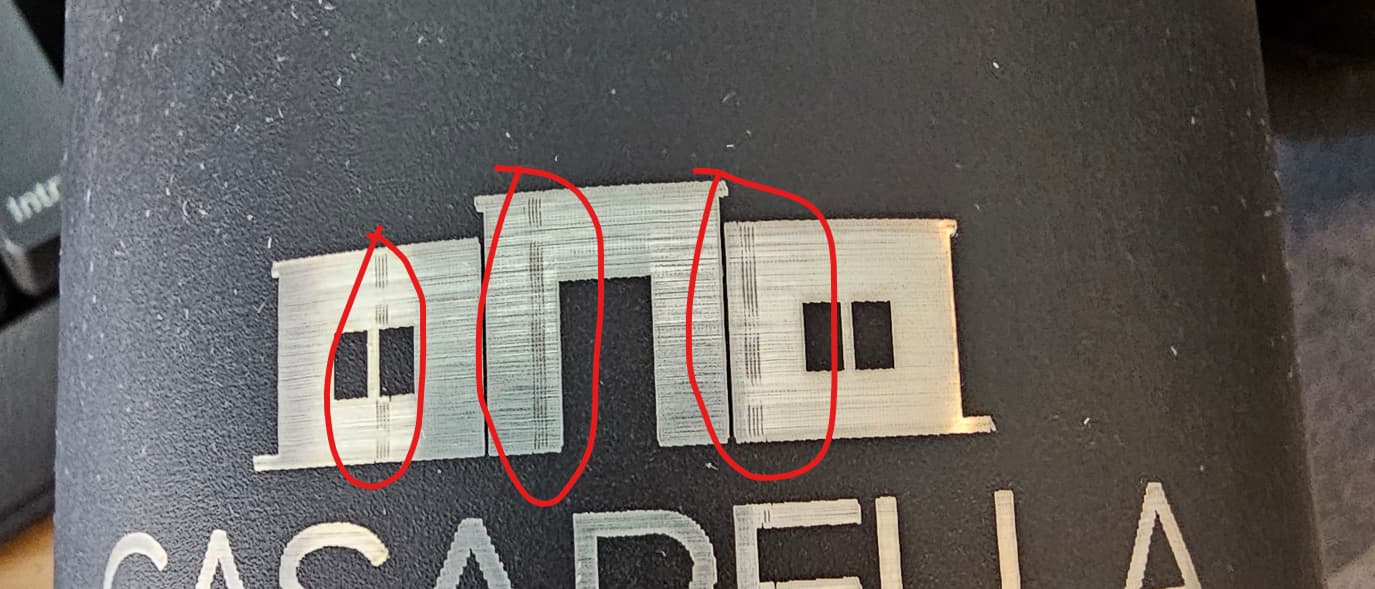
As you can see in the image, when engraving the logo, some lines appear in one direction, always in roughly the same area.
Sometimes they shift a few millimeters, but they’re usually in the same spot.
The only way I can slightly reduce those lines is by doing a second engraving pass, but it doesn’t always fix the issue.
Has anyone experienced this problem or knows what could be causing it?
I’ve already done several material tests with different speeds and power levels, but the result is the same.
The X axis moves across the flask, and the rotary controls the rotation along its height.
The lines appear in the same direction as the X axis movement.
I’m using a roller-type rotary kit.
The flask is perfectly round, with no visible bumps or dents.
The lines appear almost always in the same area, sometimes shifting just a few millimeters from one engraving to another.
So it looks like the issue is repeating in a specific section of the rotation, rather than being a random effect.
That’s why I suspect it might be related to the rotary movement or synchronization, not a surface defect.
Thank you!
I’ll check carefully for any bump, uneven spot, or residue on the rollers — maybe there’s a small build-up or flat area that causes a tiny slip when it passes under the flask.
It makes sense because the lines appear at consistent intervals around the flask.
I’ll clean the rollers and run another test to see if the pattern changes.
@ednisley completes my idea.
The problems I pointed was not to the flash but to the mechanical parts of the roller system. Especially in the roller system, there are several points where bumps or gaps can occur, which will cause defects in the engraving.
I had the same problem last week and discovered I had selected flood fill in the advanced settings. After turning that off i didn’t have any more missed engravings. I am using the creality rotary roller with the creality z1 10w, on stainless tumbler.
What type of image did you use for the graphic and text? I see a lot of jagged edges on the text and stair stepping on the A when I zoom in. You might have remnants in your graphics, and those vertical lines are very much part of your image. It almost looks like you’re working from a jpeg file.
Thanks everyone for the advice.
I was able to solve the problem.
After several tests, I ran several material tests with different settings.
I initially started the job with this setting: Speed 6,000 mm/min and Power 70% (specifications according to Creality’s specification table).
But it wasn’t the most suitable; I ended up doing the job with Speed 3,500 mm/min and Power 50%.
This way, the job turned out perfectly.
Conclusion: always test the material before starting.
The maximum theoretical speed is not always the best actual speed, to use. I have a persistent issue with my chuck rotary when engraving on X axis. I turn the axis 90 degrees (against common advice given here) and I get a beautiful result. IOW Do what works.
Super high-speed engraving can cause problems with “ringing” - vibration induced by the mechanical parts slamming back and forth. Often times that shows up as light shadows on the engraved surface. Overscan settings can help dampen the ring by allowing more space/time for the machine to slow down and reverse directions.