How do you easily see the operations for a shape. when an operation is assigned to a shape there seems to be no window that shows a tree of shapes and operations. or click on a shape and view operations assigned to it.
To check shapes :
For a list:
1 Like
When the operation is selected, you see the assigned shapes appear with a thicker outline:
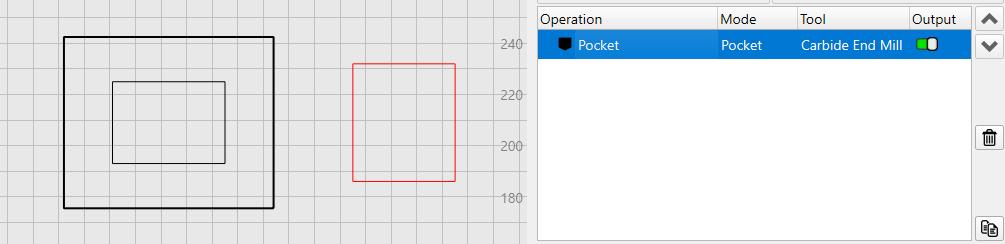
You can also right-click the operation and “Select the shapes assigned to this Operation”
Or enable “Auto -Use Layer” if that works for you.
You can easily see the shapes assigned to an operation, as Aaron explains above. There isn’t a simple way to do the reverse and see all the operations assigned to a single shape. We have the info, so we could do it.
1 Like
I was on mobile yesterday.
Just to add to the above solutions here is a trick I use and abuse. Select all your shapes then click each OP and you can easy see the Marching Ants in bold corresponding to each OP:
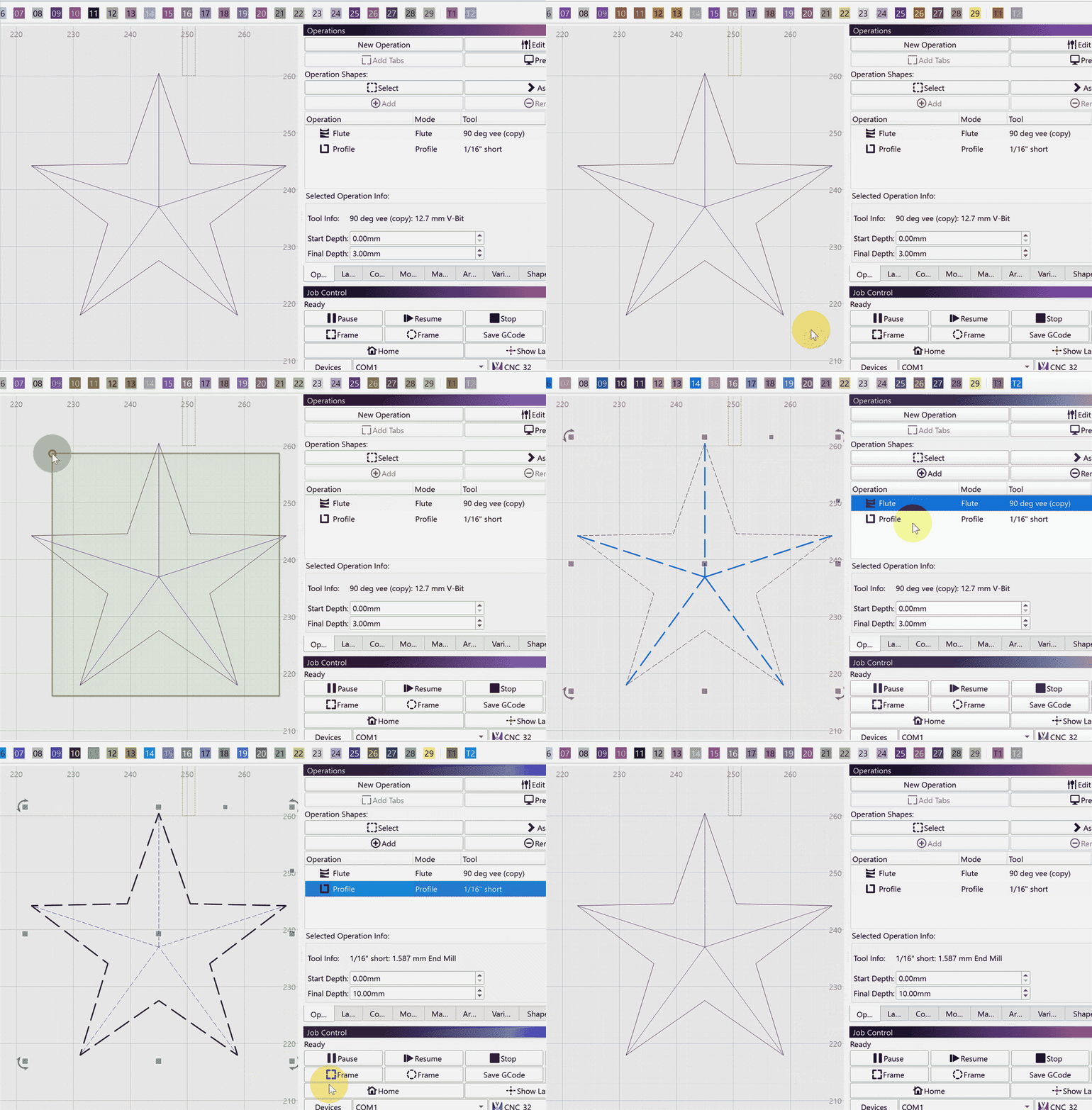
I believe this is not in the Docs so maybe tell @ClaudioD about it.
2 Likes
The matching ants appear when shapes are selected.
The bold shape outlines appear when shapes are in the selected operation.
So, it’s expected, but the combination of both probably isn’t called out.
1 Like
ya maybe put it in the shape properties