I have wanted alternative looks to “Fill”. Instead of just being a depth, I want a brick texture, burlap, stacked stone wall, voronoi,etc.
So you want to use a true repeating graphical texture file, where the left/right and top/bottom seamlessly line up so you can seamlessly repeat a relatively small image over a large area.
LB can do that- but you have to use Grid/Tile to make the image repeat, then Convert to BMP (which makes no sense, but this must be done to fuse it into a single huge image), and it actually has to make a data structure of 12x the size of the original image to do a 4x3 tile of it. This can make everything run really slow and the project file can become huge.
Then you’d make the shapes you want to do as a textured “Fill”, but set the layer to “Lines” with the same layer number as the tiled Image layer, then select both the shapes and massive tiled image and “Apply Mask To Image”. You would definitely send the masked graphics to the laser, you might also the Line layer as a light, low-power surface engraving for emphasis.
And when you create that tile pattern, it’s locked in, you can’t add more if your shapes get wider later. You’d have to delete the layer, re-import the image, tile, and merge again.
This begs the question, how can we do this better? Well, we REALLY don’t need to make that huge, slow Grid/Array of identical copies repeating.
I would say the best way would be to add another Layer type- “Texture”. You’d place one and only one image on it and it will automatically repeat when the job is rendered on screen or sent to the laser. This would require a Texture have a field in Layer Settings that says what type of tiling it was made with- normally the left and right sides line up, but you can also mirror the next copy on the right and then the next copy to its right would be unmirrored. It may or may not also mirror the copy above and below it. All that is already available under Grid/Tile- it just needs to be reformatted as a Layer setting for a Texture layer.
The “Apply Mask To Image” step won’t be used. It would look for a Lines layer of the same number, and automatically use closed shapes on it as a mask. The Lines layer will still be available to engrave from if you want, you can already use Output on/off to do that. Doesn’t need any new Layer setting to specify that.
Texture is an extension of Image, so “Invert”, choice of dithering or grayscale, LI, min/max power for grayscale, all that graphics handling gets reused. Texture is one and only one image, adds new fields for how the texture tiles, and requires a Lines layer of the same number to mask it.
It would be “neat” if Texture Layer DID have an option to fill with a dynamically generated nonrepeating voronoi or other algorithm and not use an Imported bitmap image. White noise would also be an interesting option too, it would look different than regular Fill. These would need at least the scale to be adjustable, and may use other sliders. Not essential, though.
So, you can use different textures for different aspects of the design if you want. A bit tedious but you could make bold text mask for a brick pattern in one spot and make a shape that masks for white noise elsewhere.
I thought of other schemes, like maybe instead of inventing a new “Texture” graphics layer, you’d invent a new “Texture Fill” Layer variant for that same layer of vectors that will be the mask. But then I realized we still need to be able to specify the type of tiling the bitmap uses, and if algorithmic options were available, that would also need a place to specify it. Logically, it seems like that needs to be done on the layer holding the bitmap, thus the decision to invent a new Texture layer that mostly reuses Image Layer.
For the most part, this is a “fancy” way to do a Fill. Either way you’re rastering the same stuff on the machine, this just makes it look much more interesting.
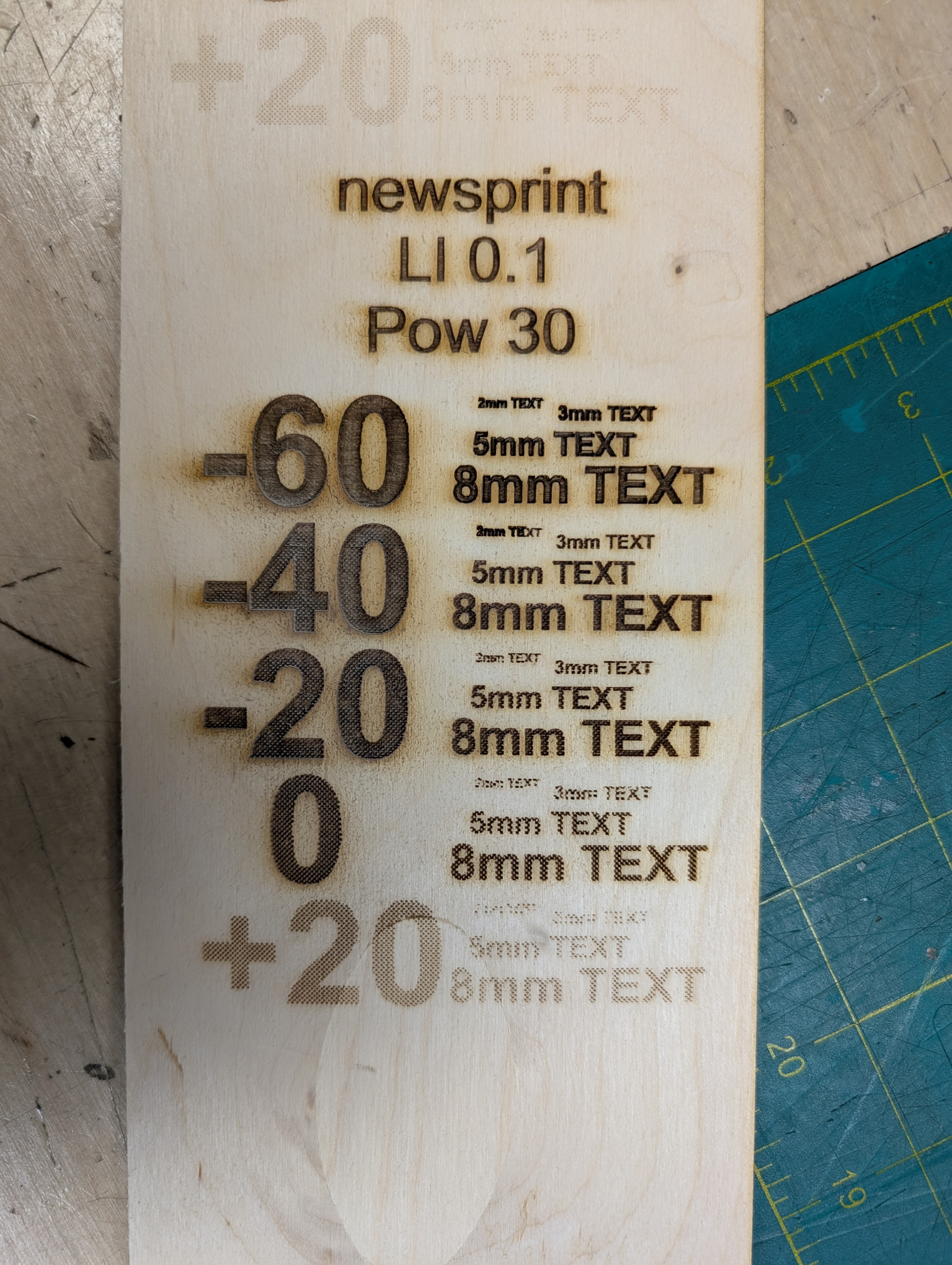
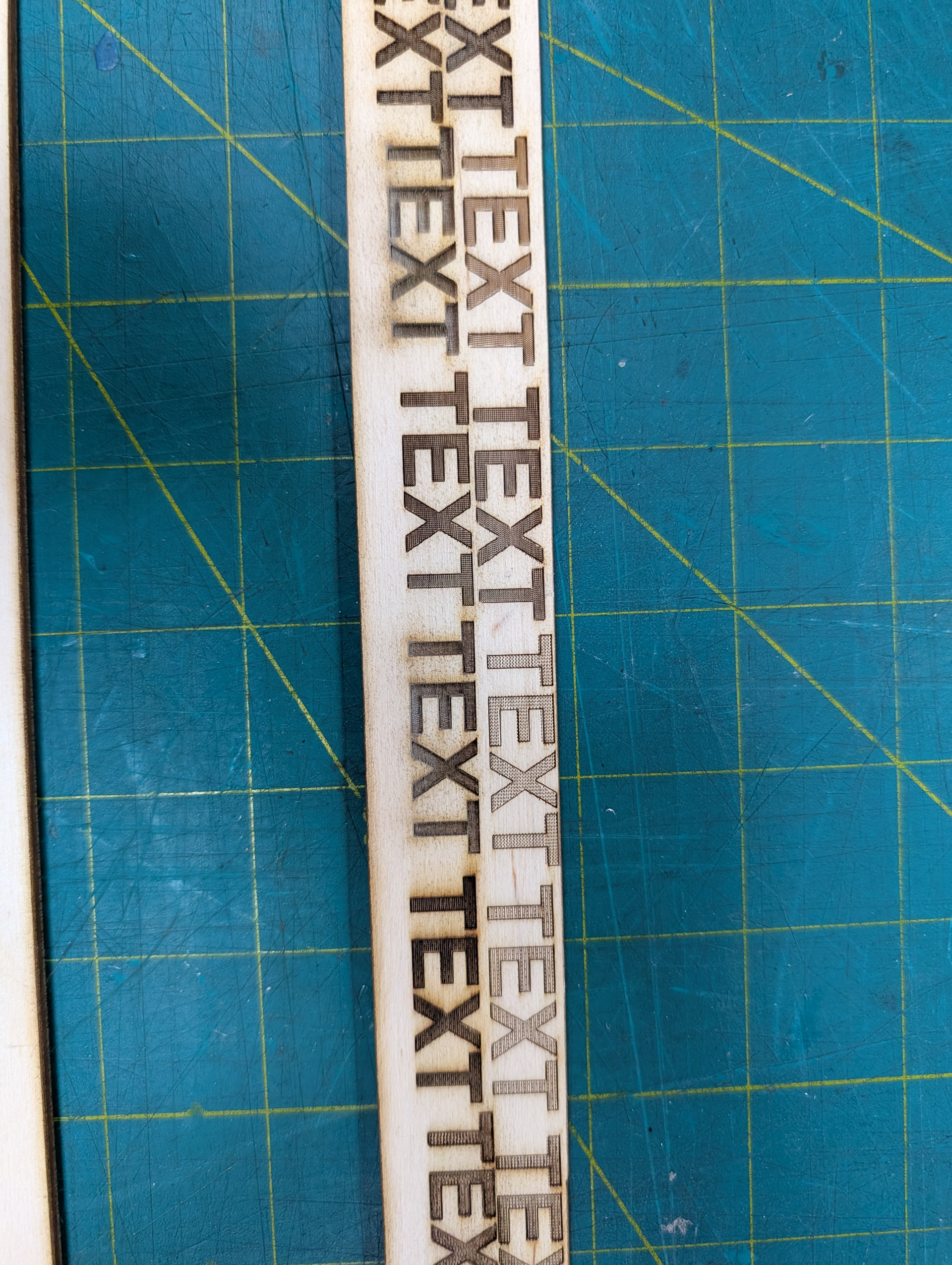
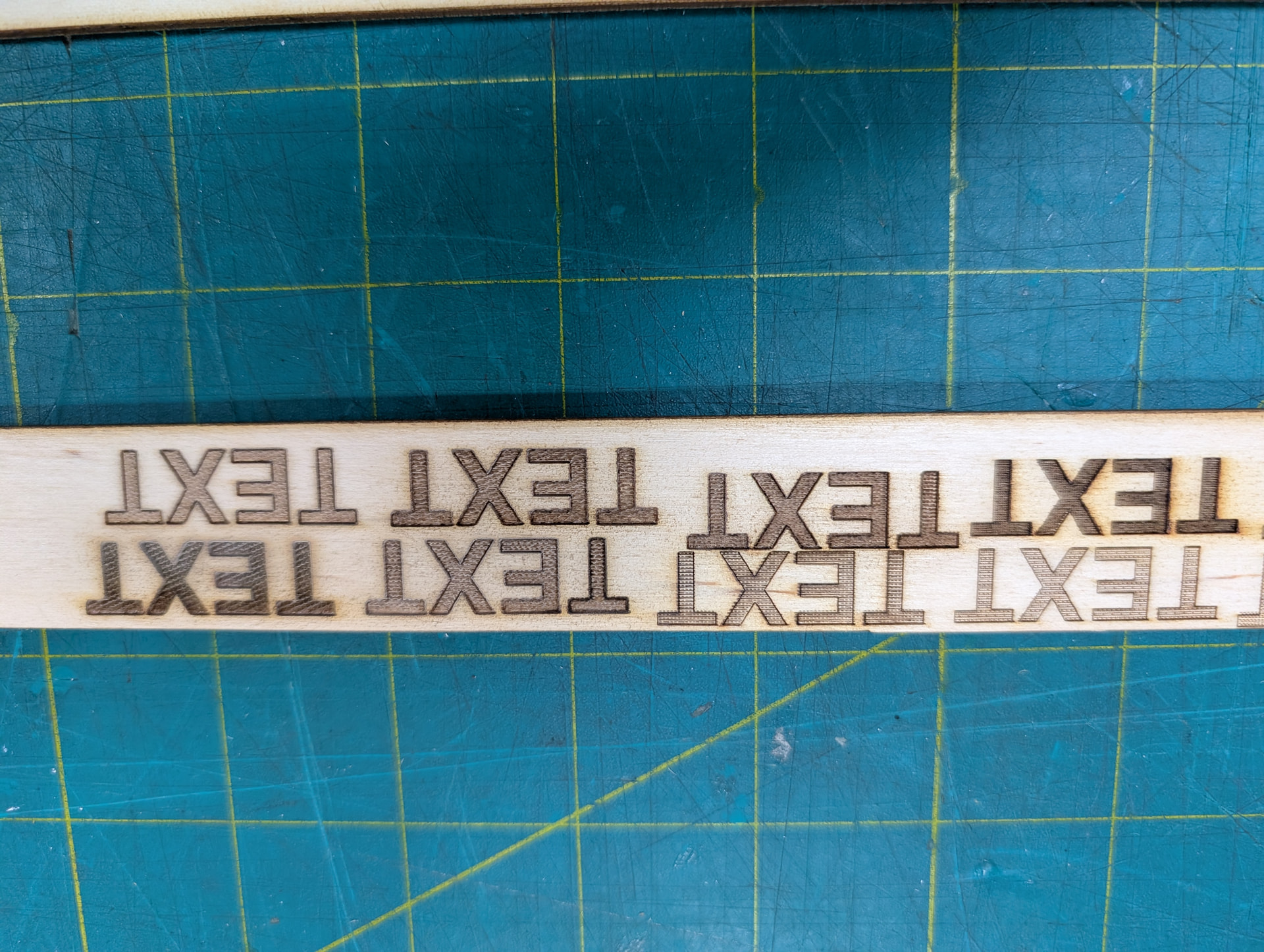
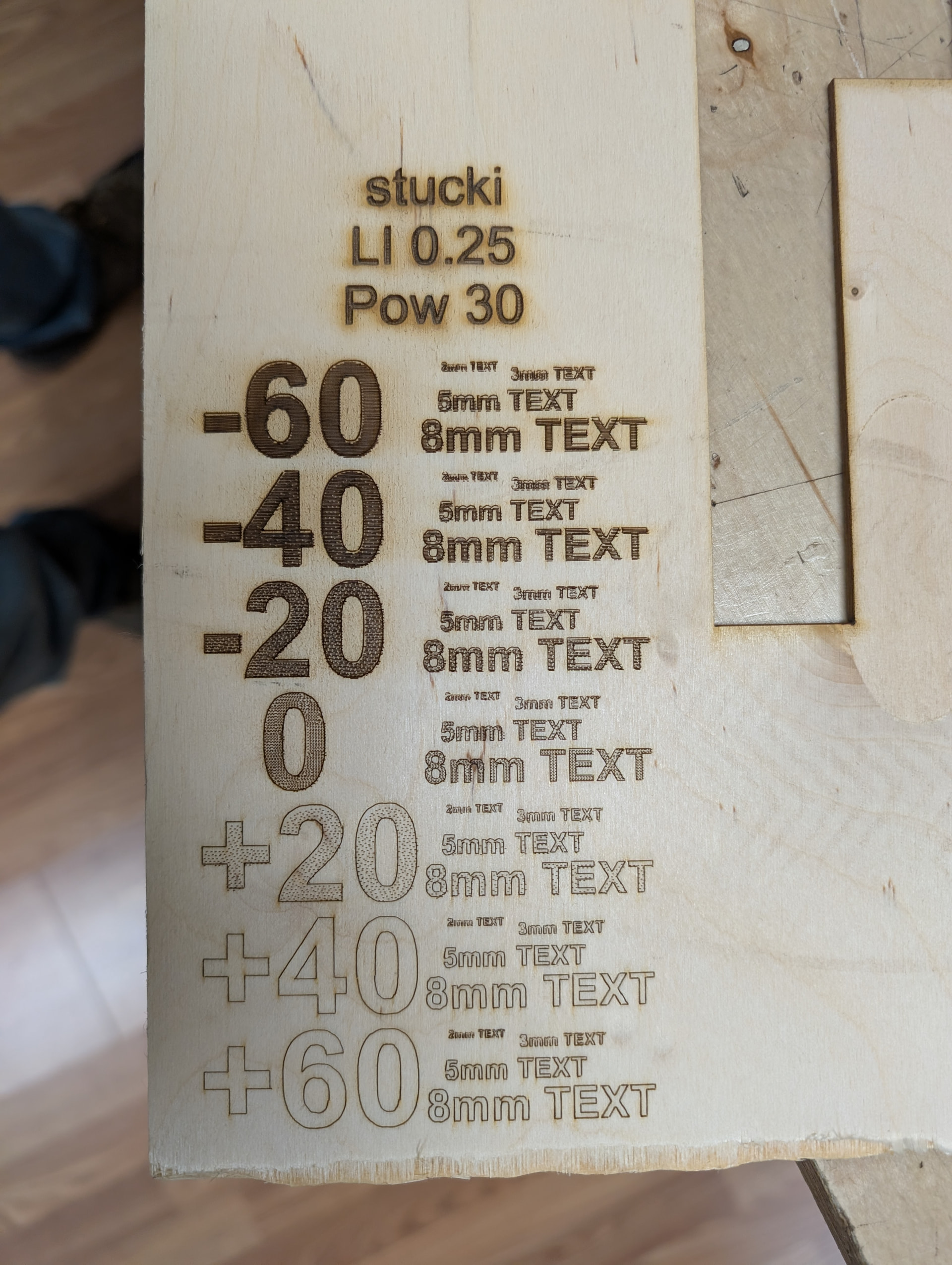
I can say, I help run a makerspace with a large user base and I constantly see people try to make Fill look different. They do the Materials Test to explore different Power/Speed settings but that’s usually a waste of effort. A Fill done at 300mm/sec 100% power vs 100mm/sec 33% power usually cut to the same depth and look about the same shade. So really the only thing you can vary that matters is the depth. OK, also changing to large Line Interval can give it an interesting looking Fill variant too, but it’s not very versatile.
People have been super impressed to see a test piece where I did a “brick texture Fill” and ask how to do it… but then it ends up too complicated and confusing, slows Lightburn to a crawl, and have to delete, rebuild a grid, and fuse the grid into one BMP again when they want to change something.
I do have some doubt though… a lot of people just want a pulldown menu of options and want to easily try each one out and see how it looks. You could put a Brick Texture, Stone Texture, Burlap, etc in the Materials Database with the few things that need to be set already done, but that won’t actually work unless the MD entry can hold the texture you initially imported, and it doesn’t currently work that way.