I drew a box, then pressed “Frame”. the laser head moves the appropriate distance on the Y axis, but shows no movement on the X axis. And If I try burning that box, all the laser cutting occurs in a straight line on the Y axis. I did check the laser functionality with Xtool Studo, and it worked correctly there.
I’ve done more work with both Lightburn and XTool Studio on my XTool S1 10w.
The good news is that I’m getting consistent good results with XTool Studio. So that shows me the laser is working.
The bad news is I’m getting both bad AND inconsistent results with Lightburn. Here’s what I’m seeing:
As mentioned above, sometimes framing shows Lightburn is not drawing along the X Axis. The entire image is drawn on the Y axis. This occurs when the laser head is in the Home position.
If I move the laser head to the middle of the material (12" square), then Framing will work more-or-less as expected. And then I can draw a box and send it to the laser.
In XTool Studio, I get great results to CUT 1/16 basswood sheet with 5mm/sec @ 30%. The same setting in Lightburn doesn’t do anything on the basswood. Now I’ve played with some other settings in Lightburn. In ALL CASES I get a MUCH THICKER burn line/kerf, and no cut-through.
My current guess is part of the problem is the laser focus. In XTool Studio, I have to set the processing distance, using their auto-measure function. (That produces a result of 15.45, presumably that’s the laser should be 15.45 above ‘ground zero’)
So at this point I’m not sure what to do to fix the Lightburn problems.
I have seen this xTool complaint before. I am sure it has been solved by an updated .lbdev file from either xTool or Lightburn. It seems Lightburn figures them out, with no help from xTool, then xTool puts them on their website.
Make sure you get the correct one for your model machine. And because xTool uses a proprietary communications format, not all xTool features available in Studio are working in Lightburn.
But the problem here is that the behavior of Lightburn doesn’t match that page. In particular, I don’t see any “Detect” button on the Console, per Step 2 on that XTool page. Since I’m new to Lightburn (and Xtool lasers), I don’t know if that’s something that was in an older version of Lightburn.
Ensure that you use the latest version of LightBurn
Screenshot:
That button was apparently one of the six macros allowed at the time, but it was likely set by the imported lbdev file and, after two years, the whole macro setup is different.
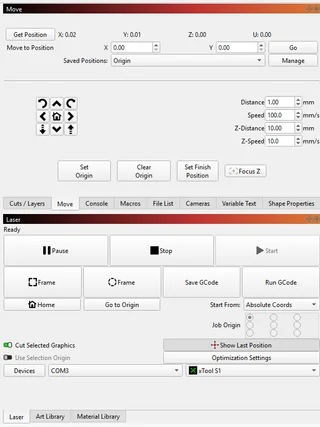
Pressing this did what I expected/hoped. It did the 2-part focus (measured to the material, then moved and measured to its reference point, and returned to the starting point.) Then running a quick test burn produced the same results that I was getting from XTool Studio.
Now I -think- this requires the .lbdev file to be loaded first to get that to appear in the Move tab.
I’m not sure if I need to do this before each burn, or just when changing material.
I still need to play a bit more with the left side framing problem.
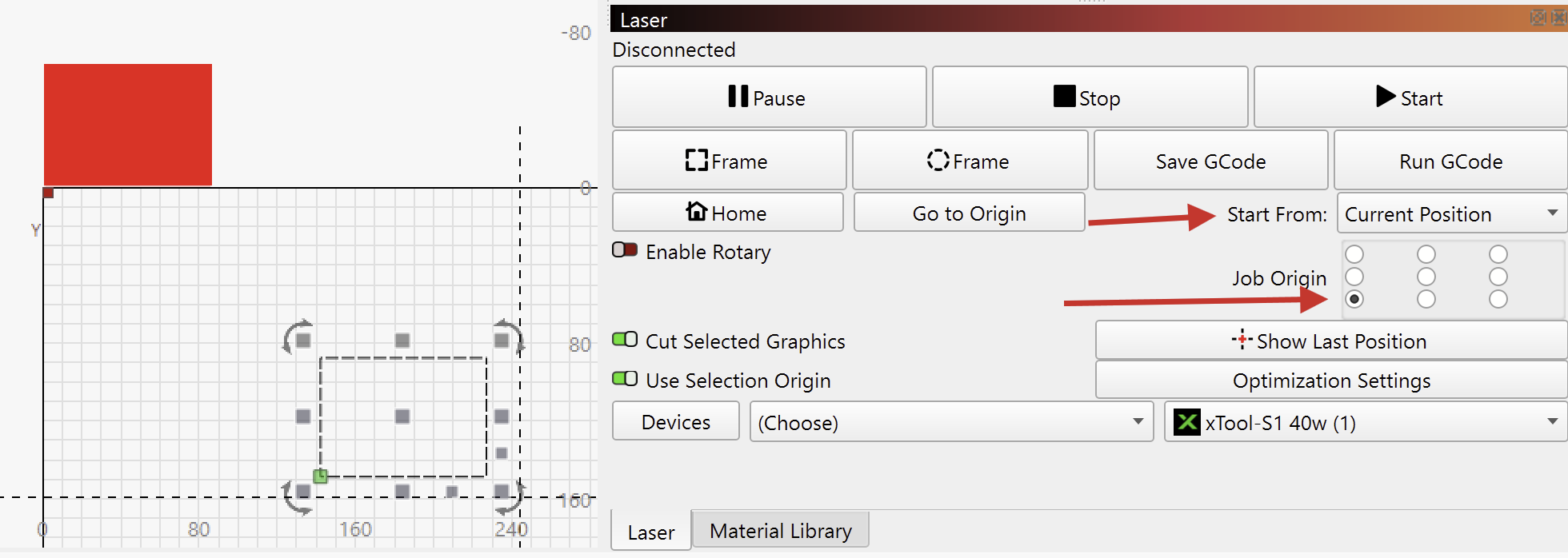
If you start a job from “Current Position” with origin at the bottom left and the head in the home position, you basically tell the laser to engrave outside the workarea. Most lasers will throw an error if they receive “Move out of range”, but it’s possible that xTool doesn’t do that.
In this example here, sending the black shape would tell the laser to engrave it where the red shape is:
I’ve been trying to do my homework… In particular I reviewed this thread on the S1 Setting up xTool S1 with new xTool device type in LB 1.7 and Beyond Do these instructions/lbdev file also resolve the offset between the red crosshair and the actual laser location? If not, how do I figure out the offset to manually enter?
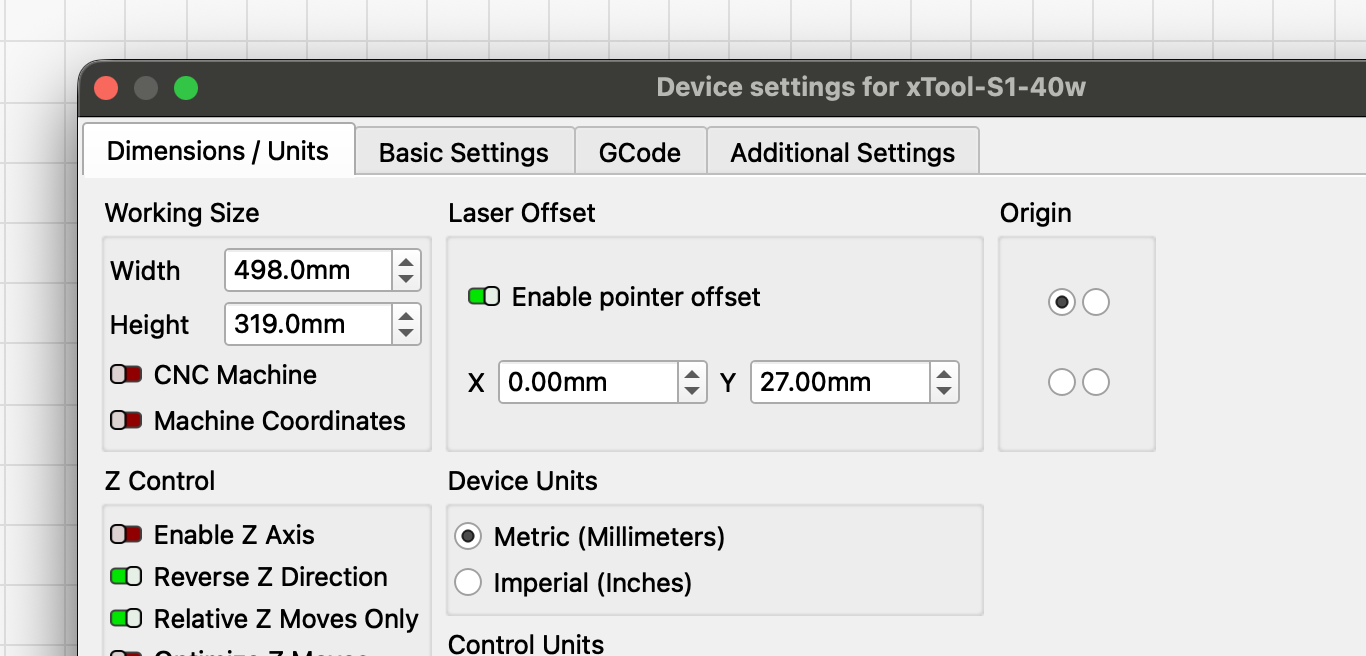
One last (I hope ) question: I ran the laser offset procedure (got a value of X 0.0 mm, y 23 mm for the S1 10w laser). I did this in the middle of the piece. Then I moved the head to the far left. I got an “out of bounds” warning, but (resetting the positioning for the 2 squares burn to be top left corner), when I printed, the shape was placed exactly where I expected. I also ran ‘2 boxes’ in the middle of the bed, with no warning.
@JoeSpanier : you got Y 27mm for the 40w, I got Y 23mm for the 10w. Any thoughts on the 4 mm difference? That’s more than just the kerf difference, I would think. I guess it’s the difference in the 2 laser enclosures/positioning of the laser within the enclosure.
So my question now is: How can I determine the bounds (particularly the left bound) to avoid this warning?
on the S1 it’s pretty easy actually because its got closed loop motors.
Start and home the machine. Look at the position read out at the top of the move panel and click Get position. It should be somewhere near 0,0.
Then open the machine, grab the head and drag it to the opposite corner. Click get position, those are your maximum coordinates. Set those as the new bounds in device settings.
If I move the head to the top left, position some material under that location, and try to burn something, I get the “potentially out of bounds” warning. So I’m guessing there’s something in the lbdev file, combined with the machine’s location feedback, that generates the warning.
That warning triggers anytime you are using “Current position” or User Origin and we cant tell how close you are to the edge. Is meant as a sanity check more than a dire warning. You are likely fine to click ok and run.
If you have your art close to the edge, it might be too close and scan offsets might be generating the warning as well. Try moving it farther if its genuinely not working



 ) question: I ran the laser offset procedure (got a value of X 0.0 mm, y 23 mm for the S1 10w laser). I did this in the middle of the piece. Then I moved the head to the far left. I got an “out of bounds” warning, but (resetting the positioning for the 2 squares burn to be top left corner), when I printed, the shape was placed exactly where I expected. I also ran ‘2 boxes’ in the middle of the bed, with no warning.