I am trying to take pictures of hand tool and import them into LightBurn. Then trying to find out if there is a way to outline the tools and just cut an outline of the tool through the foam to hold the tool. Also, if you know of any software that could do this and then import into LightBurn.
Thank you
Use the OFFSET tool.
As James says, the offset function is part of the process that should give you the desired result.
However, you must first trace your image to get the outer edge of your tool. I achieve the best result for this when I process the image in a way that makes it easier to trace. Then you must determine, with the offset function, how much tolerance you want around your tools.
Another option that I also use is to “cut” the object out with the line tool, it works fine with simple objects.
Image 1 is traced image 2 is drawn/cut out, both results can be used to add the necessary offset.
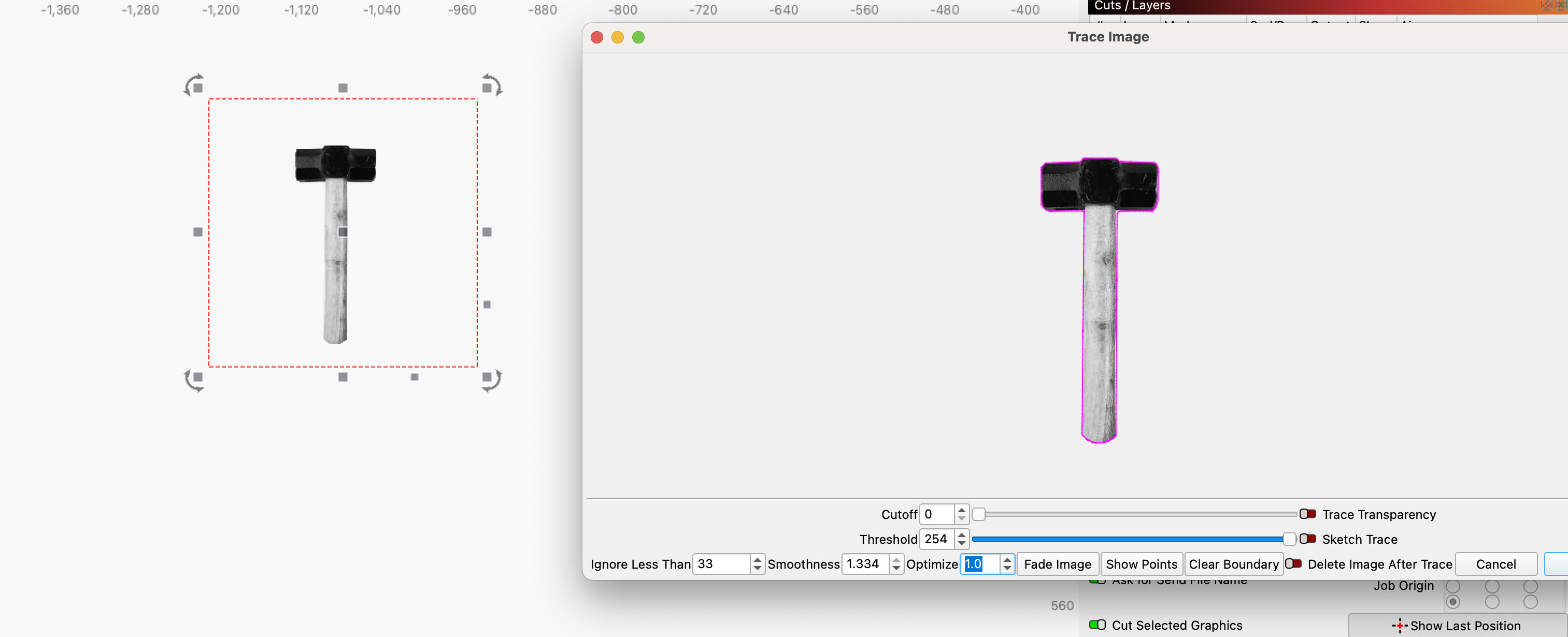
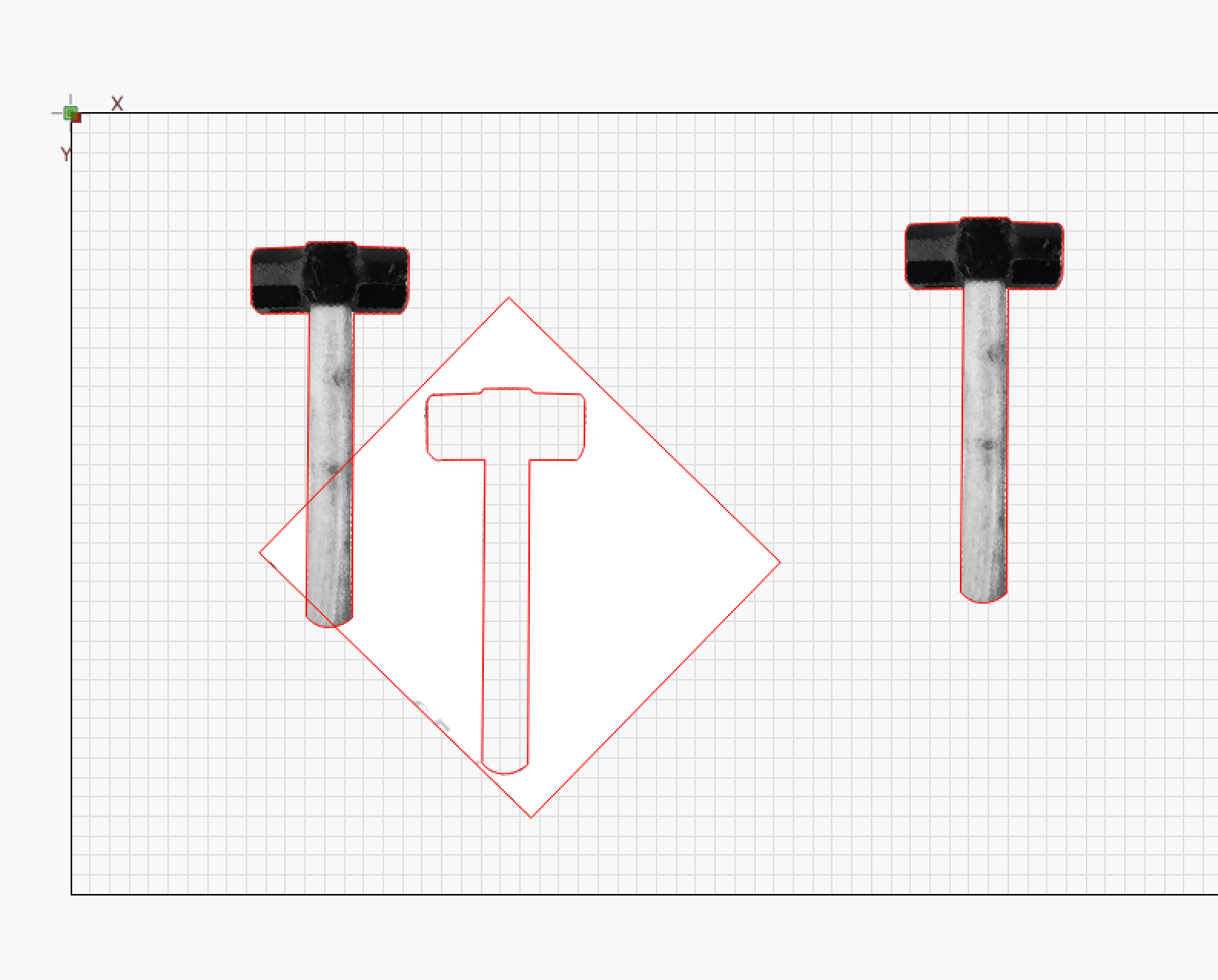
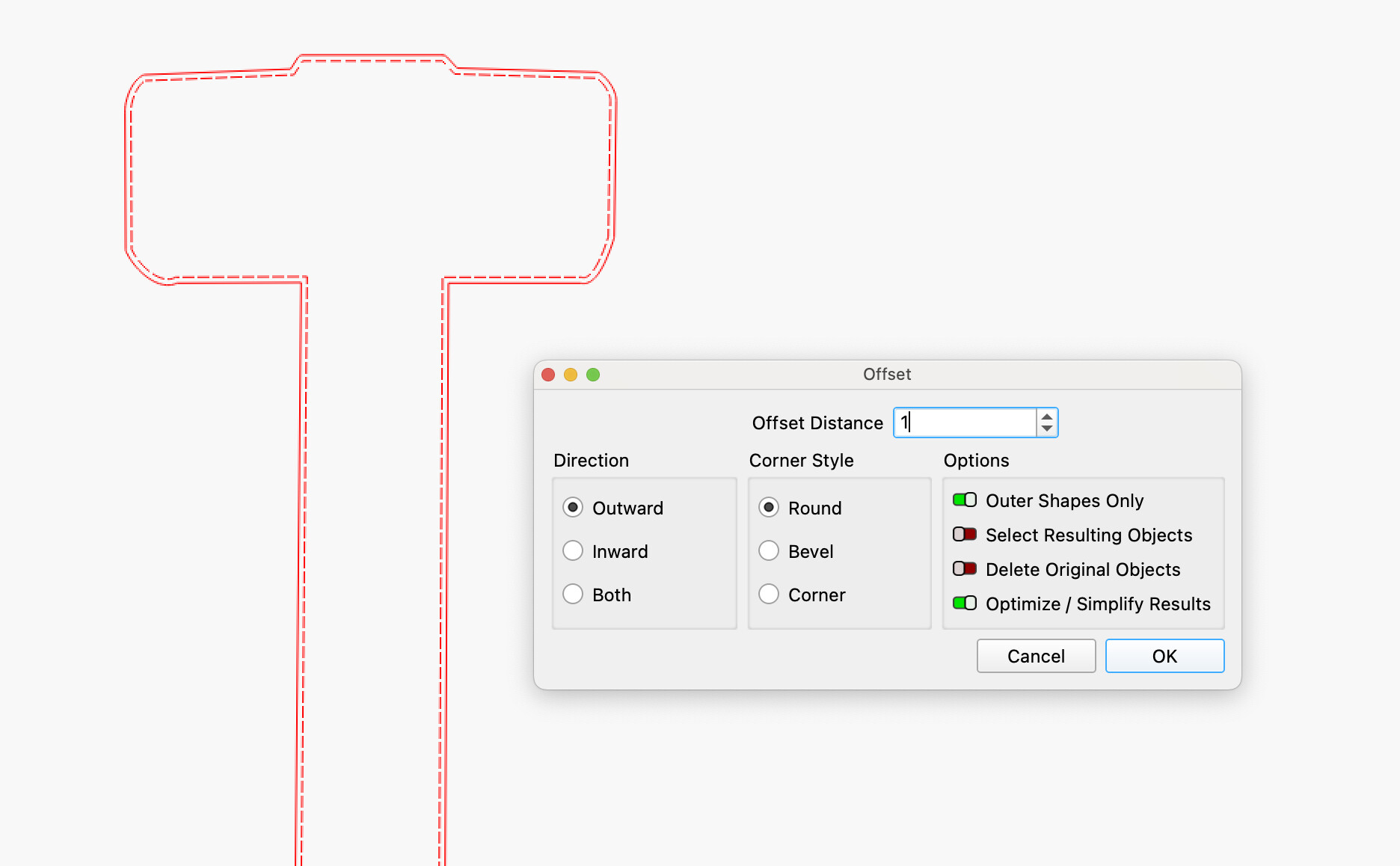
image 3 is with offset, all examples are only simplified examples.
Bernd shows an excellent way to get the desired cut path from a tool image. Another part of the process is getting the actual tool image. If you don’t have a proper image or it is distorted, it’ll take some work to edit the outline for a good fit.
I’ve had success with the following method.
Place your computer monitor on it’s back on your desk, create a white background (I just open up a blank page in my cad program). You are creating a light table.
Place you object (carefully!) on the screen and take a photo from directly above and as far away as practical. Being directly in line keeps out any distortions from the viewing angle and the distance helps keep lens distortion (fish eye) to a minimum.
Also place an appropriate object (I like to use a 6” x 3/4” steel ruler) next to the tool for scaling to size in LB.
This gives you a nice high-contrast photo for LB to do it’s magic.
A while back, I needed a lot of tracings on some crappy images, so I bought a tracing table and a pad of Vellum (tracing) paper. I trace with a fine tip felt pen, then scan the tracing into the computer. The pen leaves a wide line, which Lightburn Trace converts to two parallel lines. There I just delete the unwanted lines and get an excellent line vector. I still use it on occasion.
Bernd,
Thank you for your help!
I have a 30-day trial version, which is supposed to be fully functional software. However; several functions like the Outline feature do not functioning. I have emailed LightBurn for answers as to why they don’t work.
Regards,
Jeff H
Turn off beginner mode
You’re welcome, Jeff.
You’ll have to accept that there’s a learning curve with LightBurn. In my opinion, though, it’s no more complicated than, for example, learning how to use a new laser.
There’s no difference between the trial and full versions of LightBurn. This forum is, in my opinion, a very good resource for troubleshooting problems or finding help with their solutions. (also for beginners) Furthermore, it should (and is) also be a platform for sharing laser-related interests and knowledge.
I can highly recommend, the now very comprehensive and excellent LightBurn documentation, plus all the great videos you’ll find there. Start with the basics and work your way up. And don’t forget, there are many very helpful people here in the forum.
It is important to describe precisely what problem you are having and, if possible, to send screenshots and, if you have project-related questions, the project file (lbrn2).
Hope you get a good LightBurn start.
There is a difference between images (raster graphics; .bpm or .PNG) and vector graphics. Images have different options than vector graphics.
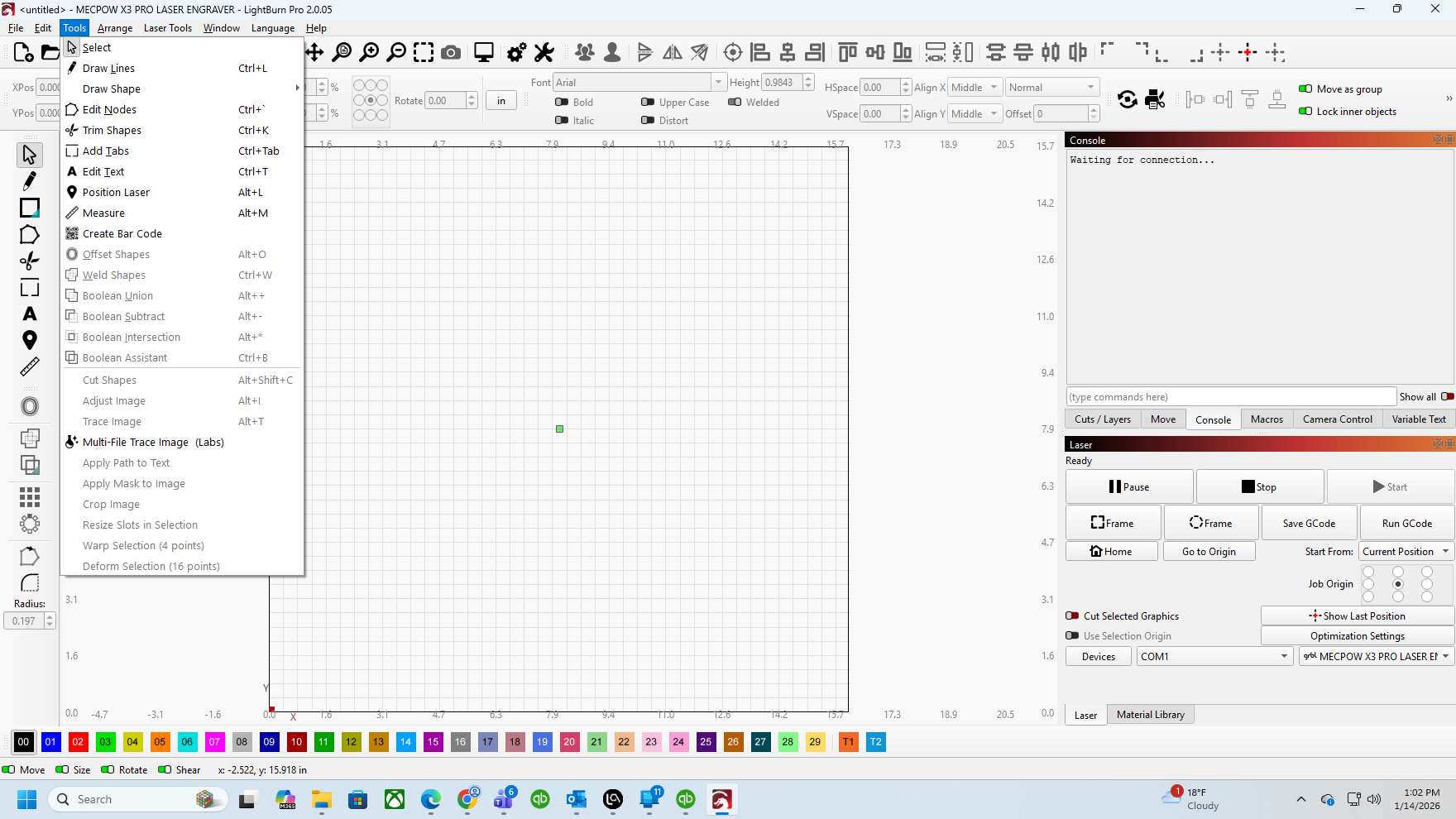
Not functioning?
- It is greyed out and cannot use.
- It is not greyed out, but will not outline.
- It is not greyed out, will outline, but not what you expected.
Open the Edit, Settings window and show us that…
There are no shapes in the workspace and, thus, all the functions / tools operating on shapes have nothing to work with and are disabled. LightBurn grays the icons for disabled tools to indicate their requirements aren’t satisfied.
Put some shapes in the workspace and select them according to the tool doc:
Whereupon those functions / tools will become enabled and not-gray.
Also, without a laser connected to the PC, none of the Laser Tools have anything to work with.