Did you know this?
You can adjust an image in LB, then select that image and goto file export and you can save it out of LB. Then you can do whatever you want with it, like get a histogram, or fine tune the image. Then load it back into LB.
1 Like
Is that the same as ‘save processed bitmap’ and after you re-import to LB there will be a further Automatic Gamma/Contrast shift.
I don’t know, it could be. I never knew that function existed. I just miss it in a drop-down menu? Actually that may be even better, because it is supposed to dithered images, I don’t think the export will save dithered images, I haven’t tried that. Next time I’m on the computer and not my iPad I will check it out.
I wouldn’t think that there would be a change to the image when imported back into LB. It should come back in as a regular b/w image.
I have started to investigate the LB dither modes vs stocastic printing dithering.
When I was still in the printing business, I just got started with investigating stocastic screening. My hope is (maybe to get LB to add it the the list). It will take a lot more investigation to see if it will give better or worse results. I know on paper there is a really big difference. Look for more results, now that I know I can export dithered images from LB.
I guess, once you were in printing, you never leave printing. All my experience was computer involved with printing. Nobody would listen to me when I tried to tell them where the industry was headed.
It has helped me understand what LB is doing. Hence the very beginning of the thread was created. Couldn’t have any more fun the falling down this rabbit hole. It keeps this old brain functioning.
Jarvis or stucki would be closest in LB, Ordered is also faster but more patterned. You could always go straight to gimp and choose from a variety of dither options and also ‘Ditheristra’ might have some other options.
This is what I found out.
Export creates an .svg file which keeps the adjustment settings, so when you import it back in it is still the same image with the adjusted image settings.
if you save processed bitmap then it saves it out as a .png file.
This is what you should use.
Good catch. that is why i was getting mixed results.
This is a test for output purposes. select all and examine it un the display window. you can see the differences in all the various outputs.
The stochastic is Ai generated to the same specs as the other and output using passthrough.
It is interesting that the Ai stochastic is close to Stuki and Jarvis. Sort of in-between. the only problem is if you change size you change the dithering.
So what is interesting is.
say you want something dithered at 100 LPI, you adjust it and save the bitmap image. But you don’t like the Line spacing, but wanted the coarse Dithered pattern.
Just import the image back in and set it to (maybe 254 LPI) and then Threshold setting. you now have the coarse Dithered pattern, but at a finer LPI.
This is what i was getting at when I was talking to support about the difference between LPI and DPI, but they just couldn’t get it.
Hopefully the link works.
WARNING!!! Make sure you have a current bundle saved. just a precaution.
Opening the file won’t mess things up as long you do an open from within a running copy of LB.
I have tried it.
if you have older versions on your machine and double click the file to open it, it will open it up in the older version. NOT GOOD.
So open it from with in your current version.
Dither test.lbrn2 (639.0 KB)
Have you looked at ‘News-Print’ as an option. I’ll never forget when I first got started, switching to newsprint and suddenly realising how it all worked…looking at my very first half decent image. It’s variable and may have that coarser look your after.
Yup, the dither will re-calculate every time you change Lpi/Dpi. That Ditheristra is downloadable and might have something suitable but I only had a quick look through it and haven’t used it yet.
I’ll probably never use it, but I am always try to come up with options. Just push the limits, and explore. Sometimes you come up with something that works. That how I got my grayscale settings, and you never know where that takes you.
The odd thing is in that file, I had exported the 100 dpi dithered image, and brought it back in and set it to pass through. It shows the correct size on screen, but when you go to the display it has grown. I haven’t figured that out. Apparently pixel sizes are different or the there is a difference in the display function. I haven’t output it yet to see what happens.
I’m still pursuing the Contrast separation to achieve the ai look and was experimenting with the c2g filter and RGB channel adjustment in gimp, which looked very promising in the article I was reading that covers the theory and math behing greyscale conversion methods…Results are somewhat less impressive so far.
I think when you adjust images, the on screen size does/can change to a larger appearance but you can be confident in the output stated in the settings.
1 Like
I output the file.
The 100 dpi dithered and save bitmap image is as follows.
- Import and select the image and make 317 dpi and output it as threshold
- Import and select the image and make it passthrough. No option to make any modifications.
- Import and select the image and make it 100 dpi and output it as threshold
On screen they look the same size.
In the preview display this what happens
- Looks correct it shows an image of the bitmap but output it @ 317 dpi. That is how it outputs.
- Show an image of the 100 dpi image, but is longer than what the original image is, and outputs it longer than the original. It does out a file that looks dithered just wrong size.
- Shows an image of the 100 dpi image, but the dithered pattern is all screwed up, and isn’t a dithered image.
I haven’t any idea as to what happens with passthrough.
Nothing happens. It is processed with no modification by Lightburn.
Could it be that 100dpi forces the image to be larger because the image must be complete (if the import states 317dpi and your using pass through which will execute the file exactly) and 100dpi requires creating a wider picture…When you say “Wider”…How wide exactly? Has the software come to a Must do/Can’t do compromise.
I’m constantly amazed by how LB takes care of just about everything…Once you feed it the right stuff to begin with.
When you use passthrough you have no control over how output other than power and speed.
When I use the same file and threshold it I control everything
The image is just shy of 11.5 inches, 1148 pixels wide.
The passthrough version is the same 1148 pixel wide image, but when output it is about 5mm longer.
This image shows what the workspace shows.

This image show what it looks like in the preview display, and it outputs that way.
Both images are the same image imported back in from the same saved bitmap which is 1148 x 33 pixels.
Note that they both end on the right end flush, but the top image starts about 5mm in front of of the true starting point, see the box around the image.
The only difference is top is passthrough, and the bottom one is 317 dpi and threshold.

Is it possible that the screen representation is a ‘calculated’ whole image and not a ‘measured’ whole image. It may only be representative of the file data. The (screen in screen) aspect could make a difference and/or the difference in dpi/resolution could work its way into the calculations. There are differences between the arrangements of scan lines and pixels…though very minor.
I was playing with various dither’s and some were third party but I lasered all at 300dpi (~100mm x 50) and with the 2w-diode. The dpi would need to be much less to notice a difference or the 20w would need to be used…with various dpi, Although I was wondering what would happen with an SVG shrunk way down in size with a dither pattern applied…and then upscaled before lasering.
The perplexingly problem is that both are physically the exact same image just output differently. The threshold one is correct size.it has to be something in the software math interpretation. Maybe a rounding issue or number of decimal places used in the calculations like .0009 becomes .000 or .001. That would throw things off. Sort of like leap year, add a bet every so many pixels to makeup for the math to work.
I might send this one off to support.
It seems that many things are only relative to each other eg the Math, the Grid and the Image. Rounding could well be the issue when on the micro level but of no great consequence on larger levels.
When it comes to importing/exporting there will be a clash of formatting standards and they must then be met by the mechanical standards of hardware.
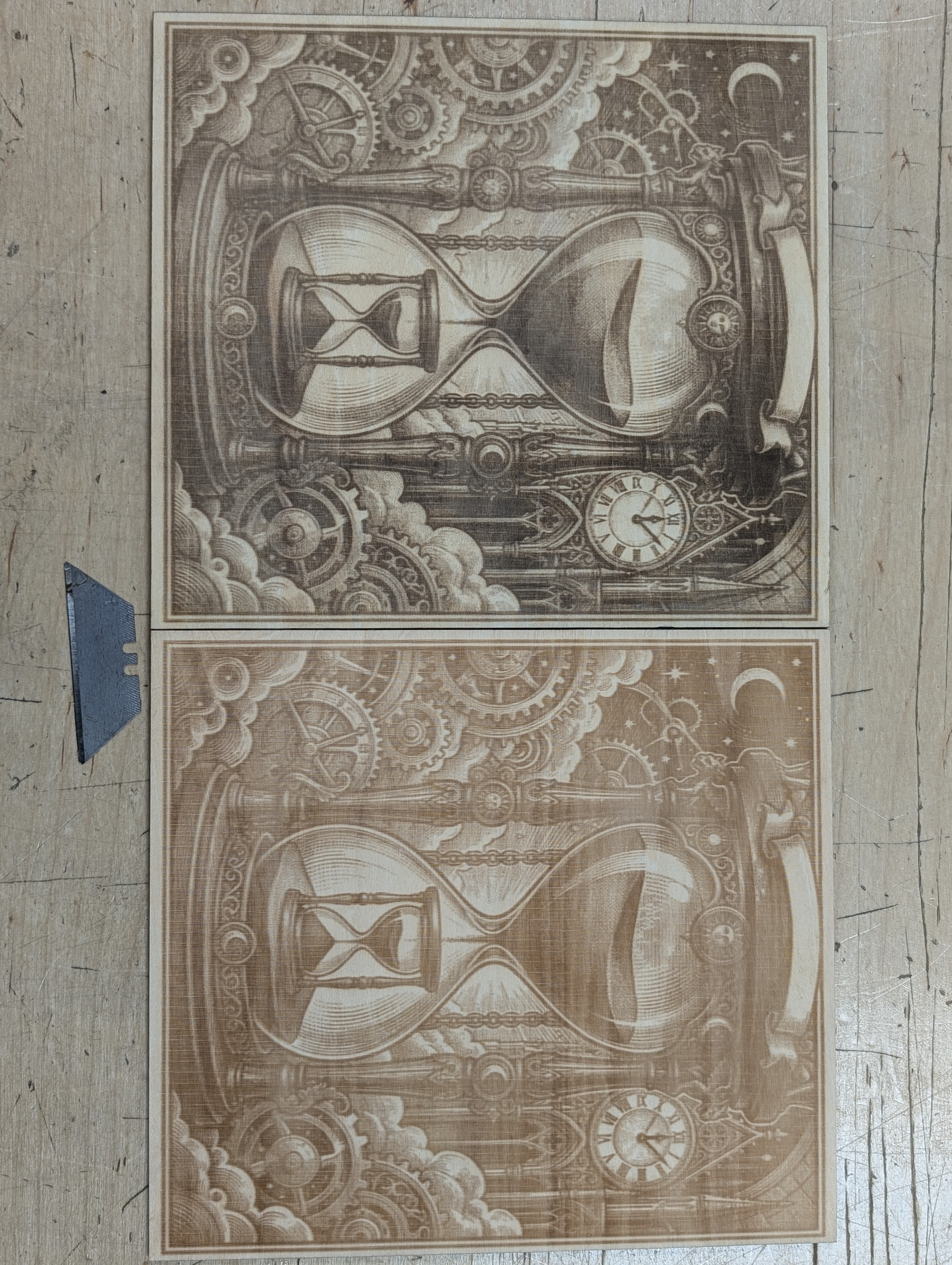
Grayscale PWM toning on an RF-CO2 on a Ruida at 1000mm/s. The dark one is borax-in-methanol, the tan one is baking soda in water but it turned out whoever mixed it up made it so weak it had little effect.
Utility knife blade for scale.
As best I understand-
You can give LB a very high resolution image or take a big image and make it smaller. Point being, when scaled onto your job, you have a higher net resolution than you can use. A FL2.0 CO2 lens gives about a 0.1mm spot size.
The most correct answer is a 0.1mm Line Interval to avoid raster lines overlapping. LB uses square pixels, its horizontal resolution is the same as the LI. So this results in a decision to turn the beam on and off at 0.1mm intervals. Min 0.1mm spacial pulse, then 0.2mm, 0.3mm etc are possible.
That’s often not actually the best method. The horizontal resolution can often be smaller than the spot size and get better results.
Many people try smaller LI and may get smaller horizontal dots and thus much better resolution on lightly shaded areas. The problem is, this works because in a 10% gray area it is unlikely that the dot from one line will overlap with a dot from a nearby line before or after it. But at 50% gray, overlapping is likely and where it does overlap it can yield unpredictable shades. Basically the dynamic range response is all messed up in darker areas, so sometimes people them work around that by lightening the image so the image has no content above 50% gray or whatever.
But a fundamental problem to understand here- IIRC LB says it doesn’t resample images on the way out. Actually, it is resampling, it’s near impossible not too, but they’re not using any resampling algorithm that would improve the result.
What I’m saying may be inaccurate, I don’t know for sure what LB does under the hood and they do tend to change it with new versions. But this is what I got from testing.
This is what I’m saying- say you have a super high resolution image of a grid of thin black-and white vertical and horizontal lines. Once scaled onto your workspace, the lines are 0.05mm wide and 0.63mm apart. You give a 0.1mm LI, so you are dithering a grid of 0.1mmx0.1mm pixels.
The question is, how does it decide what the target shade is for any given pixel?
You might think it will just blur the grid so a 0.05mm wide solid black “0 value” vertical line becomes two half-black (127 value) 0.1mm pixels and dithers out so there’s a 50% chance a pixel will fire there. But that is not what happens.
If a pixel spans 5.6mm to 5.7mm on the bed, it doesn’t add up and average all the pixels in the original high res graphic this spans. No, it will look at exactly one pixel in the original graphic as the sample, nearest-neighbor resampling aka “point sampling”. So it’s taking a 0.1mm x 0.1mm grid of single point resampling and a 0.05mm vertical line has a 50% chance to fall between sample points and be missed entirely, just white pixels there- and, for a vertical line, will be missed consistently on every raster line. Or, the sample point can get lucky and fall on the 0.05mm wide line and consistently make a 0.1mm wide full black “0” pixel every time. Note this is NOT subject to dithering, because the sample value is 0 (totally black) not 127 (gray, ~50% chance of firing here)
Similarly, a 0.05mm wide black horizontal line can fall between the 0.1mm line interval sampling points and disappear across the entire graphic, or the sample line may fall on it and make a 0.1mm solid black line across the graphic. Not dithered to a 50% gray.
This is what I got on my testing. Someone please correct me if I’m wrong. Maybe LB has changed, maybe there’s an option I didn’t know to click.
It’s not an ideal solution. What seems most right to me would be “area-weighted resampling”- look at all the pixels in the original image the new 0.1mmx 0.1mm pixel covers, and average them, while accounting for the fact that the new pixel may cover only part of an original pixel and weight accordingly in the average.
Basically all that comes down to is a std resampling algorithm. You could do it externally if you knew what the line interval and final scaled size would be but even then I’m not sure how LB will align its sampling grid, depends on some very specific particulars in LB’s coding
Hi Danny
Just so you know how I visualise it, I count my dots per Inch (dpi) on the Horizontal (x) axis as being dpi. I count my Lpi as my number of vertical lines (y) axis + interval = Lpi.
The Bayer Matrix (Ordered) will result in a repeating pattern of dots, where as (Jarvis) is based on Error diffusion = The 'Firing or No firing decision is based on the Threshold of ~128, there is no Tiling or set pattern of dots.
All processing of an image done outside LB is best done in highest resolution and bit depth possible, the final step before exporting can be converting to 8bit…LB will do that anyway.
After import we have an image that will be rendered according to the settings we apply and ultimatly by the machines capabilities. We can set the resolution of the original image during processing to perfectly match the dot size of our laser, The Line-Interval (which is selected depending on the power setting we wish to apply as more power = thermal spreading of the dot) wil affect the Dpi…as they adjust simultaneously.
I’m doing this on the phone so I can’t read your post and reply at the same time so I hope my comments are on point.