LB 2.0.02 Random Move Behavior

I’m having very odd behavior when jogging in LB 2.0.02. I’m using the jog buttons on the move tab. The button sequence and resulting commands sent by LB are listed below:

Y- G1 X0 Y0 F6000 S0 - Wrong
Y+ G1 X0 Y10 F6000 S0 - Correct
Y- G1 X0 Y-10 F6000 S0 - Correct
Y- G1 X0 Y0 F6000 S0 - Wrong
X+ G1 X10 Y0 F6000 S0 - Correct
Y- G1 X0 Y0 F6000 S0 - Wrong
Y+ G1 X0 Y10 F6000 S0 - Correct
Y- G1 X0 Y-10 F6000 S0 - Correct
Y- G1 X0 Y50 F6000 S0 - Very Wrong

I see similar behavior in the X axis also, but can’t figure out the pattern.

Machine is a Sienci Longmill MK1 GRBL unit. Been on LB for many years (pre 1.x series) with no issues.

Help?

Starting stream
G21
G91
G1 X0 Y0 F6000 S0
M2
[MSG:Pgm End]
Stream completed in 0:00
Starting stream
G21
G91
G1 X0 Y10 F6000 S0
M2
[MSG:Pgm End]
Stream completed in 0:00
Starting stream
G21
G91
G1 X0 Y-10 F6000 S0
M2
[MSG:Pgm End]
Stream completed in 0:00
Starting stream
G21
G91
G1 X0 Y0 F6000 S0
M2
[MSG:Pgm End]
Stream completed in 0:00
Starting stream
G21
G91
G1 X10 Y0 F6000 S0
M2
[MSG:Pgm End]
Stream completed in 0:00
Starting stream
G21
G91
G1 X0 Y0 F6000 S0
M2
[MSG:Pgm End]
Stream completed in 0:00
Starting stream
G21
G91
G1 X0 Y10 F6000 S0
M2
[MSG:Pgm End]
Stream completed in 0:00
Starting stream
G21
G91
G1 X0 Y-10 F6000 S0
M2
[MSG:Pgm End]
Stream completed in 0:00
Starting stream
G21
G91
G1 X0 Y-10 F6000 S0
M2
[MSG:Pgm End]
Stream completed in 0:00
Starting stream
G21
G91
G1 X0 Y-10 F6000 S0
M2
[MSG:Pgm End]
Stream completed in 0:00
Starting stream
G21
G91
G1 X0 Y-10 F6000 S0
M2
[MSG:Pgm End]
Stream completed in 0:00
Starting stream
G21
G91
G1 X0 Y-10 F6000 S0
M2
[MSG:Pgm End]
Stream completed in 0:00
Starting stream
G21
G91
G1 X0 Y-10 F6000 S0
M2
[MSG:Pgm End]
Stream completed in 0:00
Starting stream
G21
G91
G1 X0 Y50 F6000 S0
M2
[MSG:Pgm End]
Stream completed in 0:01

Where does the machine home to? Front left or back right?

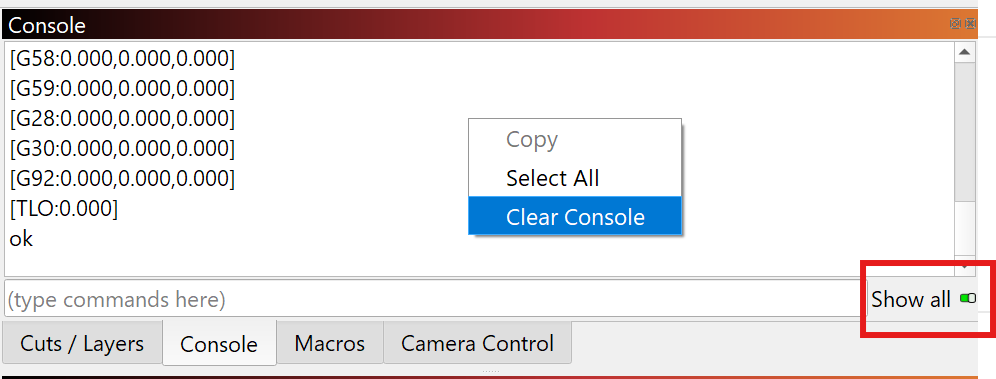
Right click in the Console Window, select “Clear Console” and enable “Show All”:

Enter these commands, one line at a time, and press “Enter” after each:
$i
$$
$#
?

Then, right click in the console, “Select All” and copy/paste the full output in a reply here.

This should provide us with the necessary info to set up your device.

1 Like

Aaron,

The unit does not have home switches so everything is a relative move. The front left is the ‘home’ position. A positive X moves to the right and positive Y moves to the rear. Here is the output.

$i

$i

[VER:1.1h.20190830:]

[OPT:V,15,128]

Target buffer size found

ok

$$

$$

$0=10

$1=100

$2=1

$3=5

$4=1

$5=0

$6=0

$10=1

$11=0.010

$12=0.002

$13=0

$20=0

$21=0

$22=0

$23=0

$24=25.000

$25=500.000

$26=250

$27=1.000

$30=30000

$31=0

$32=1

$100=200.000

$101=200.000

$102=200.000

$110=4000.000

$111=4000.000

$112=3000.000

$120=350.000

$121=300.000

$122=500.000

$130=812.000

$131=812.000

$132=105.000

ok

$#

$#

[G54:-6.402,-655.302,-112.155]

[G55:0.000,0.000,0.000]

[G56:0.000,0.000,0.000]

[G57:0.000,0.000,0.000]

[G58:0.000,0.000,0.000]

[G59:0.000,0.000,0.000]

[G28:-466.000,-63.000,25.000]

[G30:0.000,0.000,0.000]

[G92:0.000,0.000,0.000]

[TLO:0.000]

[PRB:0.000,0.000,0.000:0]

ok

?

?

<Idle|MPos:0.000,0.000,0.000|FS:0,0|WCO:-6.402,-655.302,-112.155>

ok

@Aaron.F - does this give you the info you need to help me configure/resolve the issue?

That’s plenty of information to work with, thank you, and please excuse the delay.

This part is important. If you don’t have home switches, the machine treats the power on location as zero. I recommend reading this docs page: Machines without homing sensors or limit switches
And to consider adding limit switches to your LongMill MK1: Inductive Sensor Kit for the LongMill MK1 | Sienci Labs


As for the proper settings, it’s important to use the correct LightBurn version.
The version 2.0.02 you used still contains a bug that causes the problems you described.

An update with the fix is imminent. Until then, please use the Pre Release Candidate from here: LightBurn v2.0.03-RC4 Release Candidate

I’m pinging @goeland86 for further advice.

Oookay. I’ll admit this is an odd one.
So it looks like your device origin (in LB) is set to bottom left, and that is the correct location - that’s good, it simplifies things a bit. Make sure the CNC Machine toggle is OFF.

Now, regarding your jogging problem: because you don’t have homing switches, the moves that it emits are actually correct from LightBurn’s perspective: LightBurn assumes the workspace is going to range from [0,0] to [deviceX, deviceY], with only positive coordinates.

When you first connect, I’m guessing the Get Position button returns X: 0 Y: 0. This means that to prevent a crash, LightBurn is not going to send a jog move that is negative. This is because it would try to go beyond one of the limits on the axis which it established as being 0.

That said, if you manually move your machine (you can issue G1 X- and G1 Y- moves until you’re on the front left), and do a G92 X0 Y0 from that point, you will notice that jogging now behaves as expected, and will not allow you to jog past the left or front edges and crashing your machine.

Unfortunately we’ve added those safeguards because not all users and laser manufactures are conscientious enough to add endstops or hard/soft limits on the machines.

I realize that CNC router users without limit switches are going to feel a bit of pain with that, but it’s a support issue. I’d rather tell you where the safeguards are and how to work around them because you clearly have the knowledge to use it responsibly, than end up with hundreds of folks complaining just after Christmas that LightBurn broke their brand new laser. :wink:

I hope this clarifies how Gcode jogging now works?
1 Like

This topic was automatically closed 30 days after the last reply. New replies are no longer allowed.