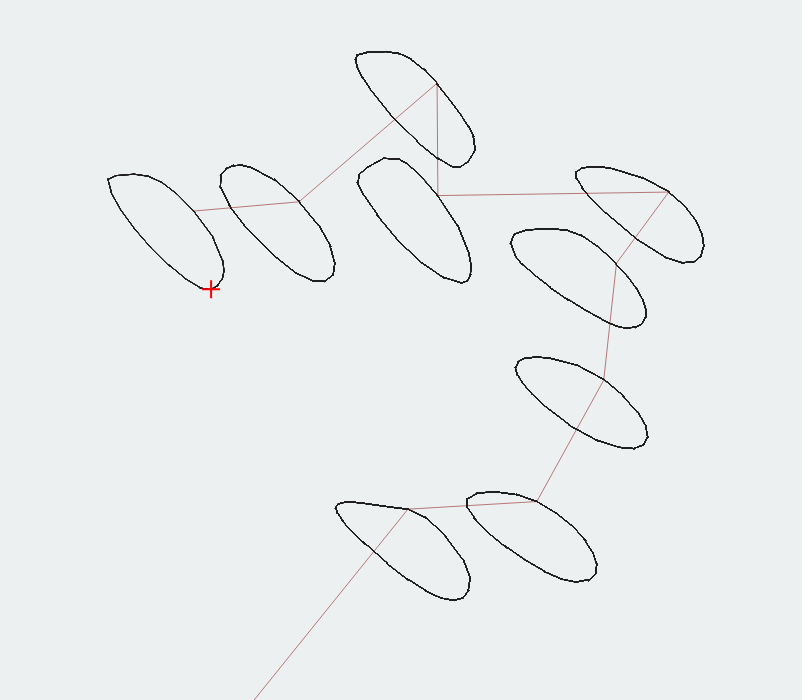
I currently run into a challenge when cutting thin materials. Single pass cutting is possible but in most cases this will add too much heat and the material warps. So I try to do multiple, fast lower power passes. This works if I do it by hand - loop the entire piece multiple times. But when using multiple passes per layer or global layer passes the line feature loops a single shape multiple times and then goes to the next shape, when there are multiple shapes in a single layer.
This is okay for long cuts but small cuts will bring too much heat to a single region. Ideal would be to cut all forms of a layer and then repeat the layer so that the increase in temperature will be even through the workpiece. I understand that this will slow down the piece a bit, but that is intentional.
The parts will loop before going to the next one - this is only a small part of the whole cuts but it will heat up the small area significantly.
Even better would be to do the layer and then add a delay or minimal time per layer pass so a cooldown period could be established that will allow for the necessary cooling per layer execution. It currently seems the delay in timing is only per object in the layer - so if I have multiple objects it will wait after each object. So it will take ages to complete a single object since the delay has to be much higher when not just cutting the other parts first with heat in other regions.
Either I am currently overlooking the settings needed that changes the order or are these features that are currently not supported.
I understand that cloned layers could work but that workaround would only go for 10 layers max and I often even have multiple layers already to make clean passes or offset passes so it is not a good solution in my opinion.
If it is the only workarround I will try to make it work but it seems to be quite a simple setting to be not implemented.
Thank you - I will try that but it seems bad to deactivate everything just to get the intended behaviour.
I hoped that there would be an easy way I just overlooked since this is such a fundamental problem of thermal management for a laser. When later updates add 2.5D support it would also be better to change the order to refocuse at the end of n layers for example.
Not if you think about it. Optimization is an override to intended (as designed) behaviour.
If you are having overheat problems, maybe you can reach out to the manufacturer. What is your ambient temperature where the laser is operating? The standard rule is, “If it is uncomfortable for people, it is uncomfortable for electronics.” Yes I know, but automobile electronics uses different design rules.
You missunderstand the thermal problems - I do not have a problem with the laser. I have a problem with the part. Very thin metal does not conduct heat fast enough in some cases to have multiple passes close by that will heat up the part. So it will often curl or otherwise move / melt.
I understand that there are other ways to fix this like lower power and so on but that will slow down the part much more than a fast movement and high power approach that will be distributed through the full area. A ridgid frame would also help but that will lower the usable size.
I like to experiment with parameters since I often work with more exotic materials and processes.
My bad, my parts are wood, so thermal issues there are rare.
I think the MOPA guys said you can control power by adjusting the frequency. Santa has not brought me a Fiber machine yet, so you need more help than I can provide.
I just set a Line layer to draw 3 squares, set to Line mode, and set Global Passes to 3. It did all 3 squares, then did all 3 again, then did all 3 a third time.
I am currently running 2.0.05 - I did not yet update to 2.1. I will try that again but I am quite sure it did not work last time I tried to use the global passes. I was surprised since I expected that to work like discribed.
I tested on both 2.0.05 and 2.1.02 and they both worked as expected.
If you had BOTH “Number of Passes” and “Global Passes” set, it will repeat each single shape “Number of passes” times, then repeat the entire layer “Global Passes” times.
I think I found my error - I seem to have restarted without saving after changing the optimization settings. The reduce movements setting was reactivated without my knowlege. Now the preview shows the intended movements. Sorry for wasting time here and thanks to all for helping.
Then I can´t tell what broke it - after deactivating it - it worked. But now even after reactivating the opimization it still works as intended. I don´t get why. I am 100% sure I tried global loops and it did not work as it does now.
Still since the problem is fixed I am happy. Thanks again.
Just one suggestion as a feature in that context - add a minimal layer time - ie wait after a layer and continue if the time since start of the layer was longer than that time. So a big layer will not be slowed down but small layers will so a part has time to cool down a bit before the next pass.
From a material perspective that would enable much faster processing without very conservative settings to account for small layers.
We can’t actually tell how long a layer has been run for. The only way to do that would be to make a guess (it’ll be wrong by some margin), or to send only a single portion of the job and wait for it to complete, then send the next, and so on. The breaks in between will add up, and would make all jobs take longer.
Yeah I understand that this would make jobs longer but that is kind of the intention. To let the part cool before going on but the other option would be to be very slow so heat does not build up. In my tests sometimes higher heat and waiting is often better than slowing down to keep it cool.
It also seems to be quite fast to send the data so I think to send a job in pieces and send when the next piece should be done would be good for that.