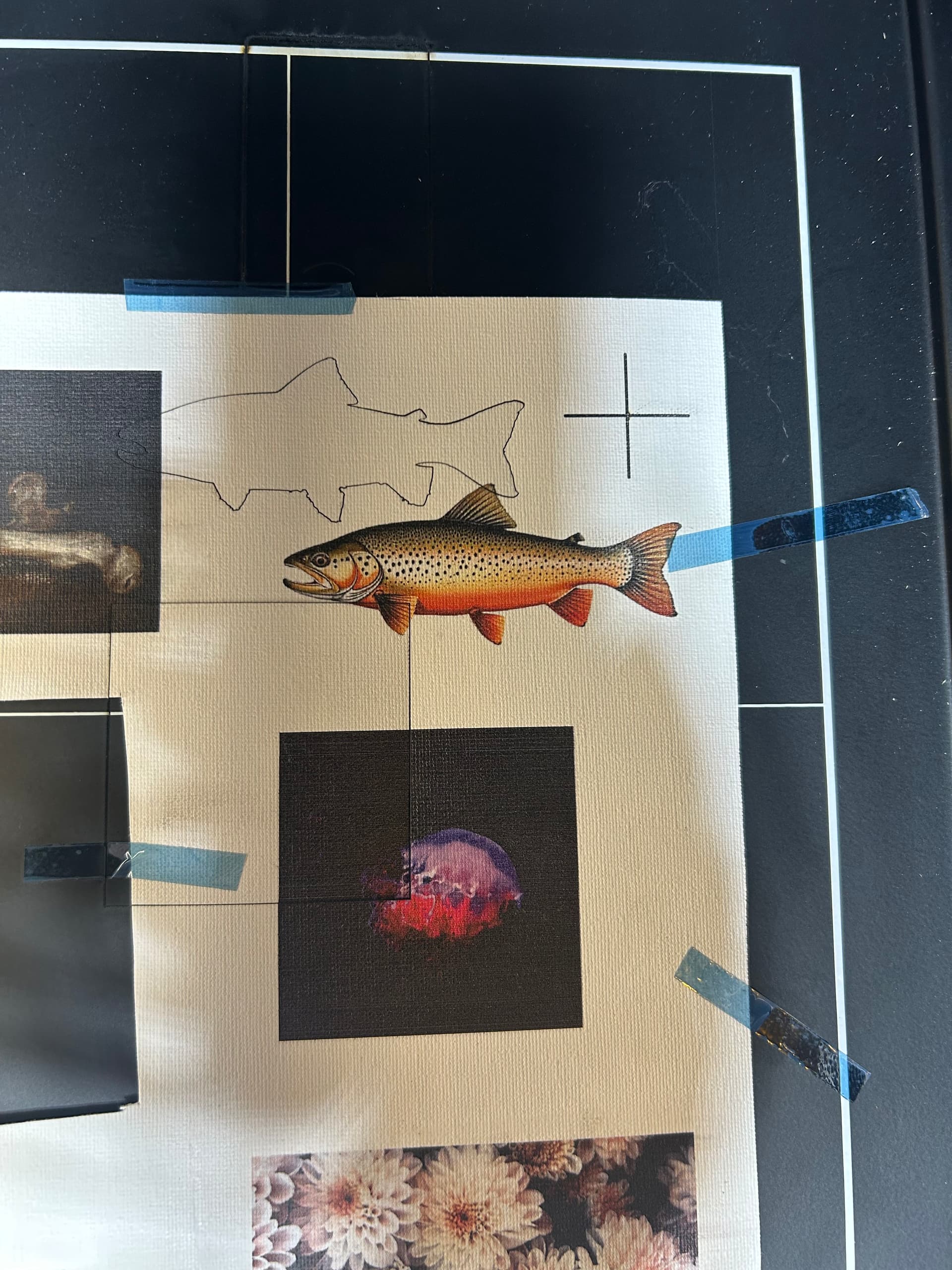
I was wondering if anyone has any ideas as to why Print and Cut would be so far out of alignment? I’m new to lasers and LightBurn but have tried everything I can think of before posting. The laser is a Creality Falcon A1 diode.
Edit: I’m creating an A4 image at 300 DPI in photoshop, importing that into LightBurn, tracing the image and then using the wizard. I have attached a screenshot of my workspace.
This is also happening when I trace and cut from the camera. It seems to be off the same distance.
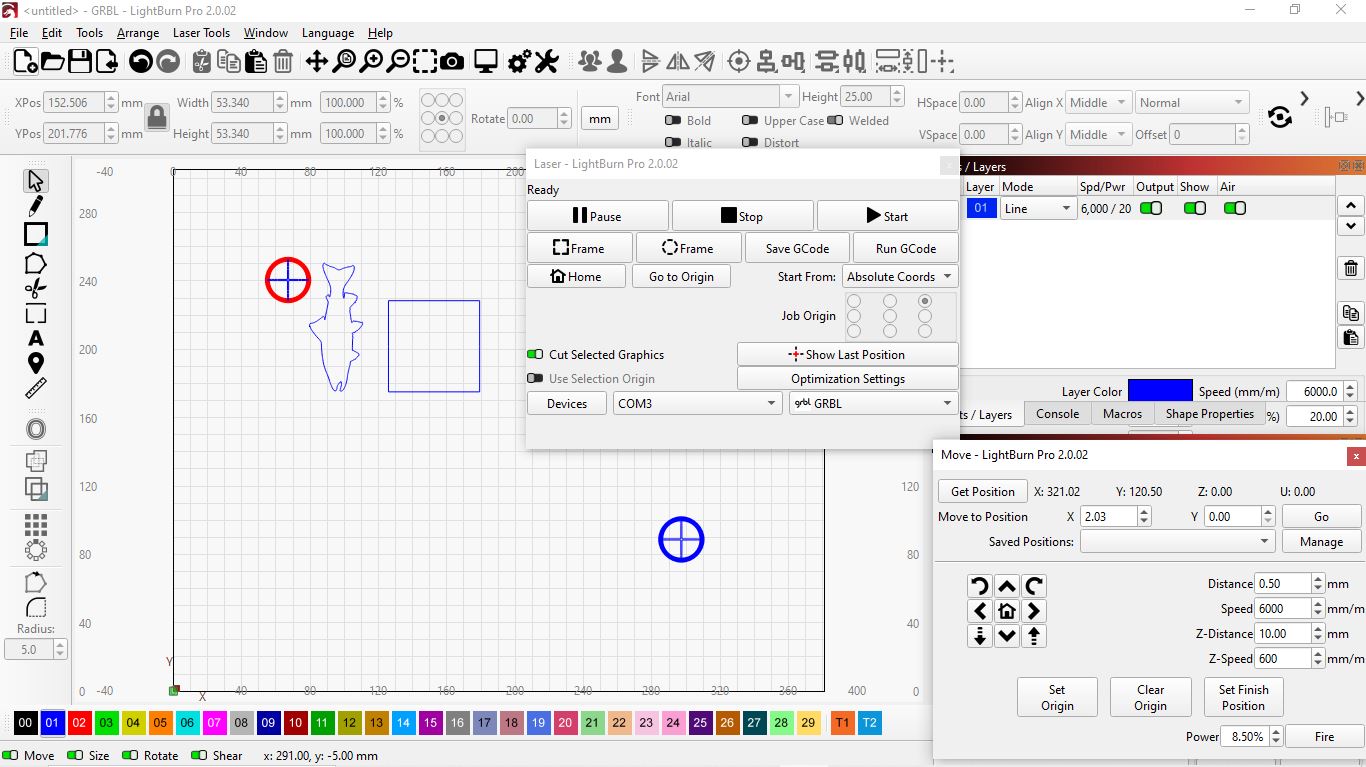
@thelmuth is a Print and Cut Guru, and I am sure he is going to ask what you are trying to accomplish. I cannot determine it from your image.
1 Like
Something similar happened to me, and I think it has to do with the “laser offset” and probably “current position,” “user origin,” or “Abs. coordinates.”
Since I’m not familiar with “print and cut,” I’ll follow along. 
2 Likes
While I’m hardly a guru as Mikey put it, I will try to help. Need at least a screenshot of your entire Lightburn screen with your project loaded and Print and Cut ready to send to the laser (not a phone pic, please) as well as a step by step description of how you set up Print and Cut.
1 Like
Another data point prior to 2.03 RC2 on a Ruida controller:
- The first PnC alignment produced results maybe 50 mm off the correct position
- The second PnC alignment worked fine
That’s with my usual target marking on a template / fixture used often enough to be familiar with it.
Things I tried:
- Resetting PnC before the first alignment did not help
- Resetting PnC after the failed alignment didn’t matter
- PnC alignments after the second one always worked
So PnC may have something like an uninitialized variable deep inside.
1 Like
Well, I’ve had issues with print and cut since version 2 landed. The Print and cut wizard keeps saying there is not enough space between targets, no matter how far apart they are. This is still the case now with the newest prerelease candidate. But now, when I click on a target and tell the laser to move to the target centre, it’s way off. Come on, guys, I reported this as soon as version 2 was released, and still nothing has been done. I need some help here. I’m using an XTool S1 40W machine with all the latest firmware updates, etc. I’ve had to go back to the last release of version 1.7 to get the print and cut usability back.
1 Like
There are internal discussions and investigations ongoing. Will update as we learn more.
1 Like
Are any of you using the ‘Scaled’ option when seeing these alignment issues?
- Select Scaled (Alt/Option+3) or No Scaling (Alt/Option+4) to align the current project in your LightBurn Workspace to the Target Positions in your laser’s work area. In the Print and Cut submenu, these options appear as Align Output to Targets and Align Output to Targets (no scaling).
- The Scaled option resizes your project to account for any discrepancy between the size of your project in LightBurn and the size of the pre-existing output in your laser’s work area, based on the distance between the Target Positions.
- The No Scaling option aligns the project but does not resize it according to the distance beteween the Target Positions.
Not me!
The fixture is more-or-less aligned with the edge of the platform and is the same size as the template (heck, it was cut / marked from the same geometry), so all PnC needs is translation and maybe a rotational itsy.
1 Like
Print and Cut hasn’t been changed or touched in quite a while.
What has changed is the code that queries the laser position, and Print & Cut relies on that, so if that isn’t working, Print and Cut won’t work either.
Go to the ‘Move’ window and jog the laser, then click the ‘Get Positions’ button. Then click ‘Go to Position’ with one of those same values. If the laser moves somewhere else, that’ll be the bug.
4 Likes
Do you have a “Pointer Offset” value set in your Device Settings?
Thanks, that sounds great. I’ll get all that up tonight when I get back home.
Did you post it on the forum, or did you email? If you posted it on the forum, that’s not the correct place for bug reports - we can’t keep up with everything here. We always ask - please report bugs by emailing support@lightburnsoftware.com. If you post it on the forum, Facebook, or anywhere else, we might not catch it.
Have you tried 2.0.03, or just 2.0? I know there was an issue with the “Query Laser Position” function for the S1 in 2.0, but I think that’s been fixed. So, is this still an issue?
For anyone having an issue with Print and Cut, something that would help us track it down is this:
- Go to Help > Enable Debug Logging
- Try to do your Print & Cut alignment
- Go to Help and disable logging again
- Email the log to support@lightburnsoftware.com with a link to this thread (or attach it here)
The log will contain the commands sent to the laser and which positions your laser reported when you clicked the ‘Set Target’ buttons, so if those are wrong, that’ll give us more info.
4 Likes
I haven’t used Scaled.
1 Like
Thank you for reporting back. If willing, please follow @LightBurn’s request above to further assist in tracking the cause. 
1 Like
Lightburn up to date
MacBook Pro up to date
Xtool S1 up to date
Print n cut won’t set either marker. Nothing happens, Position 1 does nothing when I hit “set”. HELP
I just gave these instructions, so if you can provide this info it’ll help:
Are you using the XTool device, or the LBDev file from the XTool website? (I ask because the LBDev file from their site is incorrect)
Also, this is your first post on this thread - Have you used Print and Cut before, in previous versions, and now it’s not working, or have you never been able to use it?
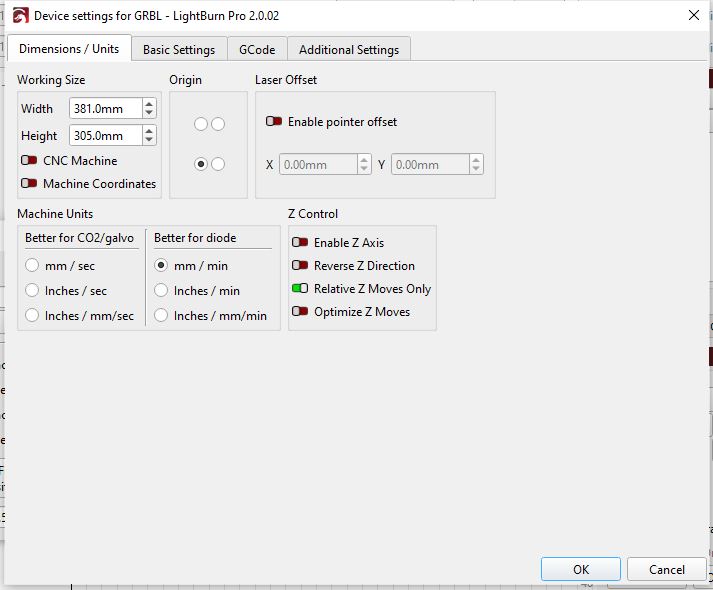
I tried this and it stayed in place.