I’ve just fitted the limit switches (Sculpfun own brand) to my S9 laser and, following the youtube instructions, went to the drive.google.com…… to download the firmware upgrade. Unfortunately the folder is empty. I’ve contacted Sculpfun directly, twice, and they just direct me to their Support page, but the firmware is not there either.
Does anyone have any idea where I can find the hex file to download to upgrade my S9 so that it will work, with the limit switches, in Lightburn please as the software refuses to recognise the limit switches without it.
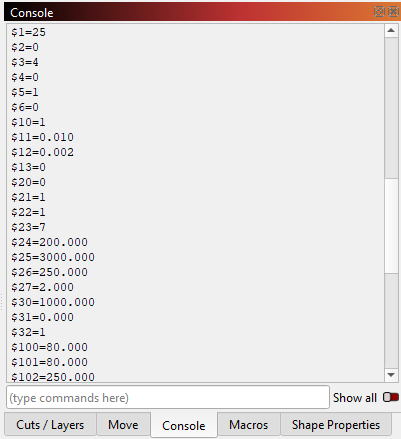
First step: open LightBurn’s Console and type $$.
If you can see $21 (hard limits) and $22 (homing), the firmware already supports limit switches and they just need enabling.
If those settings aren’t present, then the firmware doesn’t support limits and you’ll need Sculpfun’s limit-enabled firmware for your exact S9 controller — LightBurn can’t provide that.
Unfortunately, this video is quite old and they never changed it. This was only true for a very specific version of the S10 lasers. All other firmwares run perfectly fine without any changes!
Just enable them in the firmware, as Dominic mentioned, and you are done. That’s all.
Thank you to both you and Dominic to responding. I had followed the instructions that you gave about the firmware not needing an upgrade and enabled the $21 and $22 settings in lightburn
Just read through the link I provided. It explains every single setting and how to test it. First, test the switches via ?-command. Then check the next steps. All described there.
When using the move arrows, to move the head away, and then touching the Home icon, the head travels to the correct position on the X switch but stops approx 2cm away from the Y switch and sounds like a cog is grinding.
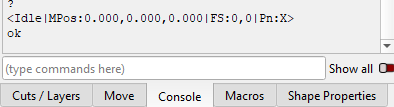
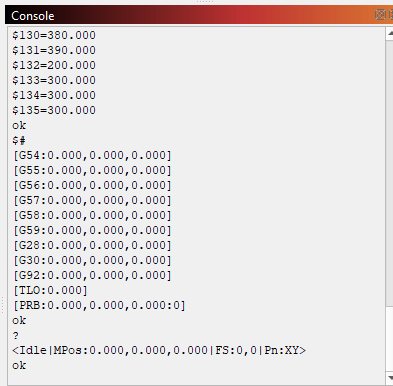
The screenshot shows that the x limit switch is activated. Is that true? Otherwise there might be an electrical issue. It should only show Pn:X when the x-switch is activated.
Yes the head is tight against both the X and Y switches but it is only referencing the X switch. However, when I reboot the PC and the laser and load LaserGRBL amd move the head to the centre of a file and click Home, the head returns to 0,0 and stops fine. It’s only in Lightburn that it is playing up. To be honest, the only reason I bought the limit switches, from Sculpfun, was because I bought their Cam500 and it said that limit switches had to be fitted (even though I managed to calibrate and use it without.
This implies the Yaxis switch is mounted in the wrong place. Both switches should close when the head is in the front left corner. That is also where the head should go when you initiate a Home cycle.
Power off, move the gantry forward until it is sitting on the switch. You will hear a slight mechanical click if the switch closes. If no click, test the switch with your finger and listen for the click. If the switch finger clicks but not gantry clicks, move it away from the front rail until you get switch action with the gantry.
Both switches are mounted exactly as per the Sculpfun installation video. Both ‘click’ when operated and, as I said, they work perfectly in LaserGRBL but not Lightburn.
Does that Home cycle match the text below? Lightburn does nothing except send a $H to the controller, which you can do in the Console window. It does not tell the laser where to go during the Home cycle. That is entirely done in the controller software and parameters.
If your machine does not operate as described below using Lightburn, tell us what is different.
HOME
Trolley and gantry rapid move towards the switches. (Yours will be Front Left corner)
When the switches are hit, the machine will stop and reverse. First Zaxis must complete if installed, then X and Y. It may not reverse X or Y until both switches are found for X and Y.
The machine will pull off the switches slowly until the switches open.
The machine will reverse back onto the switches very slowly until the switches close.
The machine will reverse and pull off the switches slowly until they open.
The controller establishes this as the Home position. It is usually shown as something very close to 0,0 as the position if the controller is set for the first quadrant. If it shows large numbers, this can be changed with the G10 command or the CNC Mode switch.
There is no other version of theHomecycle. If you have limit switches, this is how it should work.
If you do not have limit switches, where it powers up is the Origin. Home is a machine mechanical function. Origin is a software design position. They are not the same thing.
That’s impossible. LaserGRBL and LightBurn both just send commands to the laser and the laser executes them. Both send identical commands, there is no difference. Homing is a laser function, not a control software function.
That’s true. Using a camera without repetitive, exact, absolute positioning does not work. You CAN use the camera feature without limit switches, but it is neither stable nor convenient. But it works, if you make sure that the laser is at the exact starting position each time (that’s the function the limit switches provide automatically).
Thank you both for, again, taking the time and trouble to try and help.
Perhaps I wasn’t clear in my explanation so I’ll go through it point x point
I installed the limit switches as per the Sculpfun video (yes Misken said it was old but the only thing incorrect is the need to update the firmware, physical installation is still per the video)
Once installed, I opened LaserGRBL and conected the laser. To make sure that the limit switches were working I made $21 and $22 = 1, then, using the arrow keys, moved the laser to the centre of the frame. I hit hit Home and the laser moved directly to the limit switches and stopped.
I then shutdown Laser GRBL and restarted the laser and opened Lightburn.
Having checked that $21 and $22 were still showing = 1 I then set the workspace to 380 x 390 and saved all the settings
Then I closed Lightburn and rebooted both the PC and laser before re-opening Lightburn
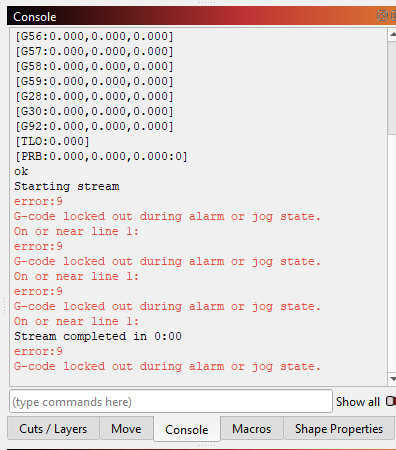
To confirm that Lightburn was working with the limit switches, using the Move arrows I moved the head to the centre of the workspace and then clicked on the Home icon. The laser moved back until it was appox 2-3cm away from the Y switch and then stopped and made a grinding sound and I had to turn off the laser by the power switch. Lightburn then reported the errors as above.
After turning everything off, disconnecting all leads and waiting a few minutes to ensure that all processors were clear, I reconnected and rebooted and physically moved the head to the 0,0 position so that the limit switches were engaged before restarting the laser.
I then re-opened Lightburn and loaded a simple 100x100 vector square and had Lightburn ‘frame’ the image. As normal it stopped at the bottom left of the square. I then tried the Go to Origin button which has always, before, taken the head back to it’s original start position. However, this time it took it to the top right and crashed into the frame and the laser had to be turned off to prevent damage. Until both Lightburn and the laser had been rebooted, neither would work.
Having, yet again closed everything down and rebooted both the PC and the laser, I started LaserGRBL and, as before , moved the head to the centre of an image file and then hit Home and, yes, it was straight to the bottom left until it reached the limit switches where it then stopped.
So gentlemen, this 75 year old brain is feeling rather frazzled trying to work out why the switches seem to be recognised and working in one program but not the other. If you have any further advice, it would be most welcome.
In #7, Home would have failed if you were already on the switches. You did not mention a problem, and went straight to #8. This step indicates your Origin was not the Home position, but where you powered up and could explain the crash. This suggests you do not have Auto-Home on Startup enabled in Lightburn. But do not turn it on yet.
@misken is 110% correct, you cannot have the Home cycle fail in one software package (Lightburn) and succeed in another (LaserGRBL). BOTH packages issue the $H to the controller and wait for the completion message.
Move the laser until it is sitting on the limit switches and power it up. Clear the Console Window (right click) and enter these commands one at a time:
$$
$#
?
Copy everything in the Console window and paste it in a reply.
So you confirmed (twice) that the laser and firmware are running fine. So DO NOT change any firmware settings anymore. It’s all correct.
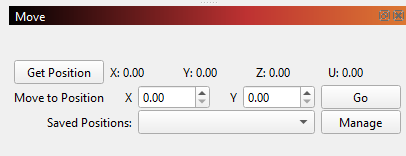
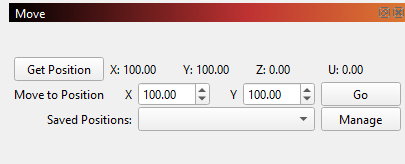
Edit: except one detail: once you homed, which position is shown in the move window?
Next, make sure that you have set the origin in device settings to bottom-left. Then everything should work fine in LB as well.
This is a fundamental misunderstanding. The “go to origin” button sends the laser to a USER origin, that has been set by you (or maybe contains some arbitrary position if never been set before). The origin buttons ONLY work if you SET the origin to some position in the move window.
If you work with limit switches, just use the home button, absolute coordinates and if you want to move the laser somewhere, use either the “move to” button in the left toolbar or use the arrow buttons in the move window.
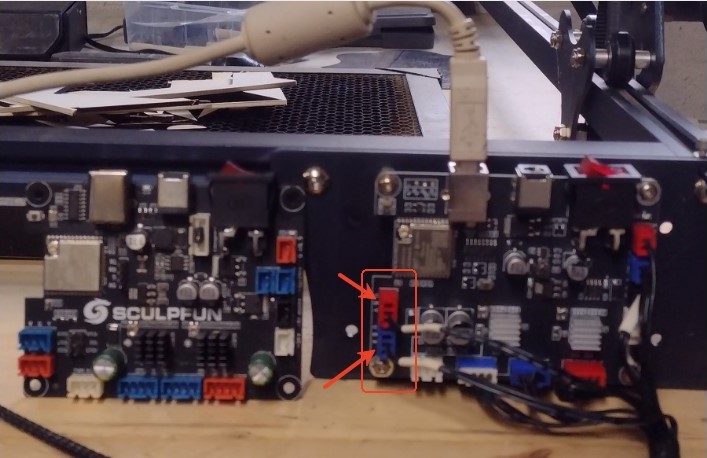
Good evening @patchworks I believe I may have had the same problem with S30 at one time when I had to change the board in it. The new board although appeared to be marked correctly as the old one and colored coded correctly it was actually reversed and I had to change the X and Y Axis cables and that solved my problem.
Hope this works as it did for me I actually discovered while having it centered and homing at startup and manually hit one of the limit switches to see which axis actually stopped.
But, if I then click on the Home icon, the head goes to Y goes to Y0 but the X travels to X1 and doesn’t trip the switch and there is the grinding noise, that I mentioned, as the head tried to continue to the left and has to be stopped by turning the machine off by the power switch. Then I have to shut down Lightburn in order to clear any cache or it just freezes.
I know it sounds ridiculous and I know that the GRBL commands for Lightburn and LaserGRBL are the same BUT, in LaserGRBL if the head is moved and then Home is selected, the head goes back to 0,0 and stops. The only was to do this in Lightburn is to use the move tab and enter X0 and Y0 as the co-ordinates to go to and select Go and the head moves to that position and both switches are activated!