To close LightBurn if the top window bar is hidden use the shortcut to File>Exit (Ctrl+Q), Or ‘Alt+F’ and then ‘X’ , then restart LightBurn with the ‘Shift’ key held down (ignores layout preferences in prefs.ini).
Device settings are clearly not being saved/restored, perhaps no settings at all are being saved to prefs.ini?
To confirm if nothing at all is being saved; after opening LightBurn again try making changes to the layout , for example move the color palette to the top. Close and restart LightBurn to see if the layout changes persist?
To see if the file was actually written to by LightBurn, open the Windows ‘Terminal’ , and paste in:
Get-Item "$env:LOCALAPPDATA\LightBurn\prefs.ini" | Select LastWriteTime
The results (LastWriteTime) should reflect the last time LightBurn was closed, for example:
PS C:\Users\nicle> Get-Item "$env:LOCALAPPDATA\LightBurn\prefs.ini" | Select LastWriteTime

LastWriteTime
-------------
7/11/2025 10:33:30 am
Try reinstalling your current version v2.0.04, and you may need to also restore your preferences from backup. If you were using LightBurn last week without issues there should be an automatic backup available to restore:
Restoring Your LightBurn Settings
Another option is to download and install the latest Release Candidate 2.0.05-RC-2, which should also help with the “can’t minimize” layout issues.
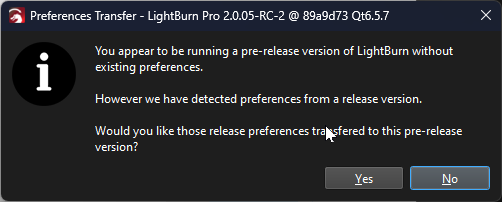
It will install to a separate folder (C:\Program Files\LightBurn_PreRelease) , when you see this message box choose ‘No’ to start with fresh settings, and have a go at setting up your device again from scratch, and let us know how you get on.