Okay.. update. Switched to a windows computer. Now it seems like the drivers to lightburn aren’t installing correctly. It is not recognizing the laser under “Universal Serial Bus Devices” nor am I seeing the BJJCZ popping up under device manager. Tried both USB ports, still nothing.
OK, back to the 20 questions. I’m way out of my depth here, but…
Did you turn your laser on? USB plugged directly into the computer not a hub?
Did you install the machine (Create Manually) on the new computer? Try to install a new lens, skip through and at the end of the install process there is the “Install EZCAD drivers” select yes. No guarantees, but this is the first step I would try.
Yea I tried both USB ports, installing the driver that Monport sent me, reinstalling lightburn, tried both USB ports, restarted the computer and laser and no dice. My laser is being recognized now under the USB Controllers tab in the device manager but not under the USB Devices. I’ve tried the “find my laser”, which it does recognize but shows “none” under the connection type. I go through the prompts, set my dimensions to 150mm x 150mm, and then it does not take. Just shows no connected devices. How frustrating! I’m going to pickup an Ethernet cable and see if I can connect that way? I’m trying anything I can at this point. Going to try and find a number for light burn to see if someone can help me troubleshoot this thing
OK, first, let’s make sure you have the driver installed. If you see “BJJCZ Device” on Device Manager, you do NOT have the LB drivers. Those appear as “USBLMCV2” or “USBLMCV4”
If you hear a whine from the galvo head- like a grinding noise- then the galvo head is bad. Don’t fire it like that. Mine worked for a few days, I heard a whine that got louder until one axis started oscillating even when not doing anything. It wasn’t physically grinding but the self-oscillation was making the mirror into a speaker. Where it was supposed to be a red dot, it was a horizontal line. If it was supposed to be a vertical line, it would smear horizontally. Horizontal line just had its endpoints overshooting.
The vendor sent me as replacement head and that fixed it. My guess was it was probably a bad power ground inside the head, but it was under warranty from the maker of the galvo head so they didn’t want me to break the warranty seals. A bad DC power supply can do it too. Might have been a bad capacitor on the galvo control board inside the head too.
When you hit “Play”, a screen should appear for red dot framing first. Send a screenshot of that. If “show Tool Layers Only” is ticked, red dot will frame nothing if you have not selected Tool layers
Thank you for your reply!
Unfortunately im not seeing “BJJCZ”, “USBLMCV2” or “USBLMCV4”. I think this is my first issue. I’ve tried all the drivers I have access to. The one on the USB that came with the machine, the one on Monports website, AND the one that monport just sent me in an email. Still no dice.
I’m at a loss for what to do next. Besides get back on my Mac where I can’t frame anything. lol. This is turning into a nightmare
UPDATE:
I replaced the USB Data cable from my computer to the laser and have been messing with my settings. Everything is communicating correctly now AND I’m framing. Here are my settings.


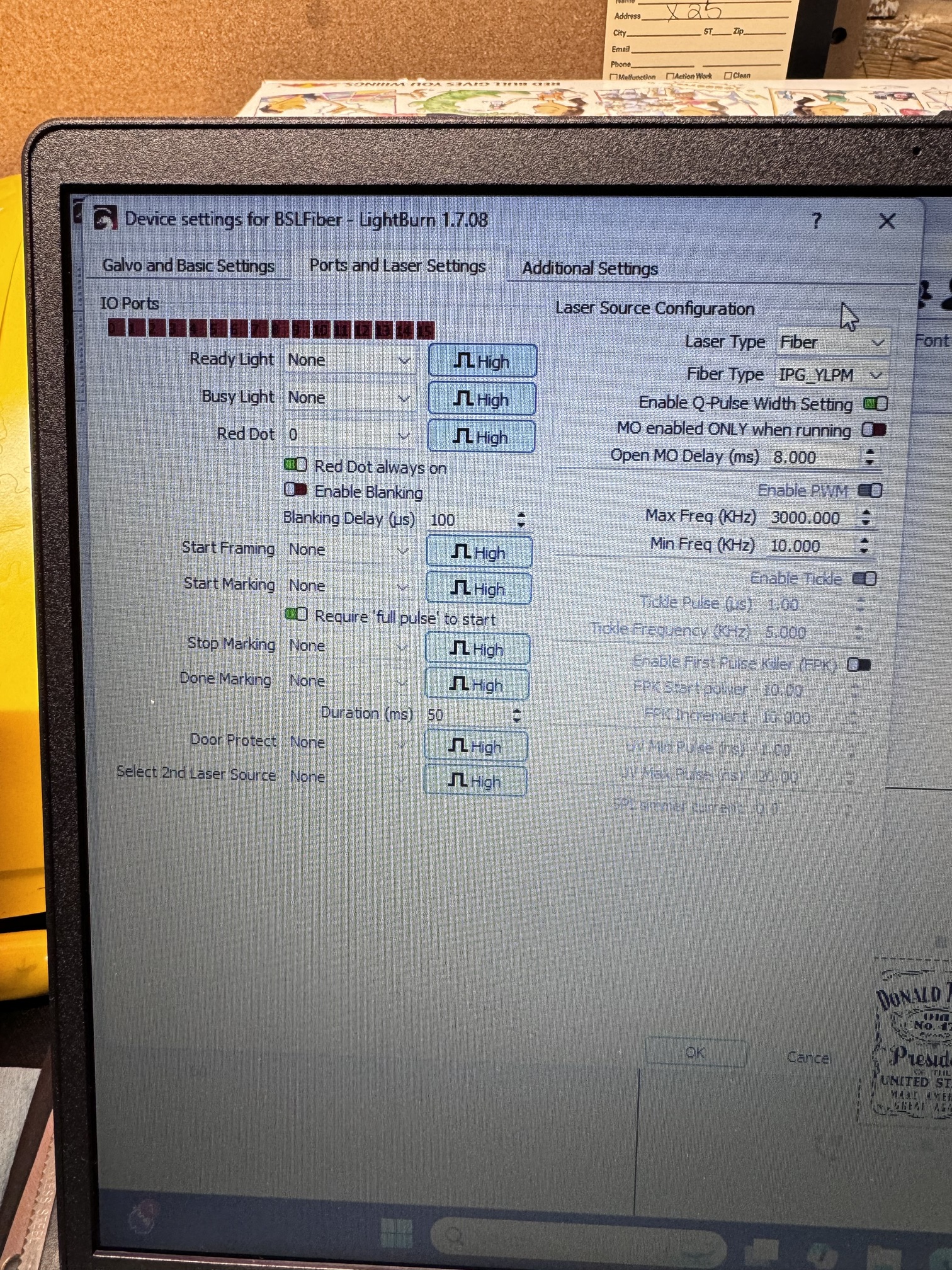
I cannot thank everyone enough for your help. And hopefully this thread helps others in the future. Happy lasering!
2 Likes
Awesome.
Glad to hear!
1 Like
I would be interested to know if the “Red light always on” was turned off if it still worked.
Good question. I think I’m too afraid to click anymore buttons 
You think it was a bad cable all along?
That’s kind of what I’m thinking. I didn’t have the settings much different from before. I can’t think of anything else that changed
Well it was fun.
Next time the 20 questions will start with new cable!
To be fair we were almost there when I asked about a usb hub or directly connected!
Now time to watch the timing and delay video a couple times through and then calibrate that.
Worth the time for sure.
Which video are you referring to?
Also, it seems I do need to calibrate again. For some reason I can’t get a completely square box when I frame out the perimeter of my work space. The square is still concave on the top and bottom.
Maybe start over, run the 9 point correction, run the scale utility, check skew. Changing machines probably did it. Alex’s LMA video:

This video was made for ezcad, two things that change with LB, need to make 2 sub layers, one fill and one line to get a border and fill. . (Ezcad will do border and fill together) Second thing, to start in lower left and have your border go CCW like the video, need to select the lower left corner and set arrow.
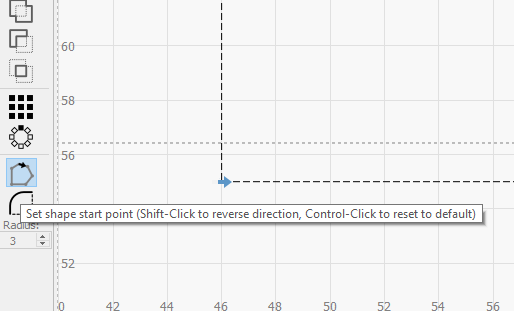
Watch the video start to finish once just to get familiar, then again working with your laser.
The cheap shiny thin black business cards work best. The thicker mat finish cards take crazy frequency and power.
1 Like
I’ll run this tonight! Thank you so much!!
The inputs are dynamically displayed in the settings. If your controller is powered up, you can press the pedal and it’s associated number will illuminate on the display.
Mine is on 14, you can see it toggle in the video.
So there’s really no reason to change numbers, it should be intuitively obvious which is the foot switch.

We have a lot of threads going on, was this for somewhere else?
PS mine is on 15.
Just a general fyi that you can see which input it’s using without guessing…
1 Like

Any idea on how to fix these curved lines? I was thinking it was going to be in that LMA video but it wasn’t. I have completed three 9 point lens calibrations with no luck. Still getting curved squares
Check your cable? (Just kidding)
You must be missing a step with the 9 point, it should fix that.
Make sure you are focused.
Make sure you are entering the correct lens size.
Make sure you are creating a new machine, name it something easy to recognize.
Make sure you go through all the steps.
Screen shot each step if you like and post.
Does the redlight laser frame a rough square when you get to that screen? With my 300 X 300 lens I need to go below the recommended %, with the 175x175 recommended fits on the table and frames properly.