I am unable to locate the compatibility tab
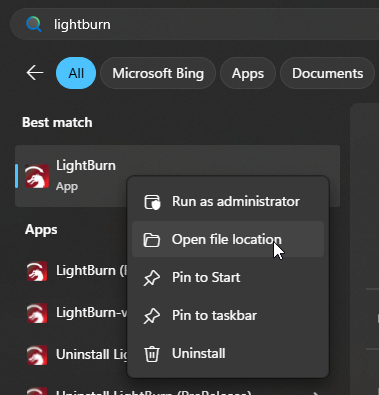
Try these alternative steps if you are on Windows 11
Click the Start menu
Type Lightburn
Right-click the entry
Open File Location
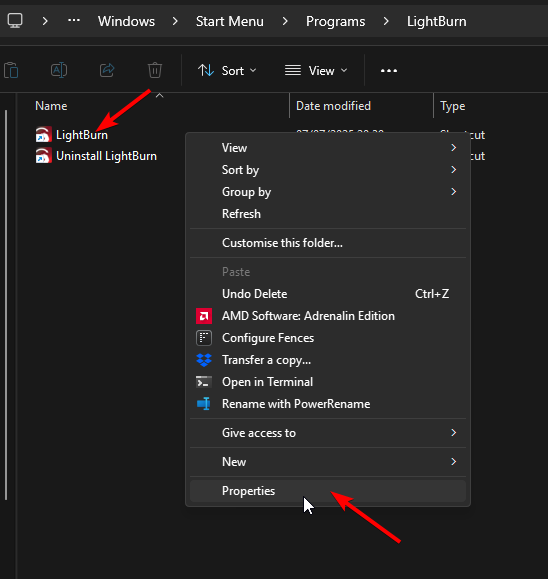
Then right-click LightBurn Icon > Properties
It should show this window
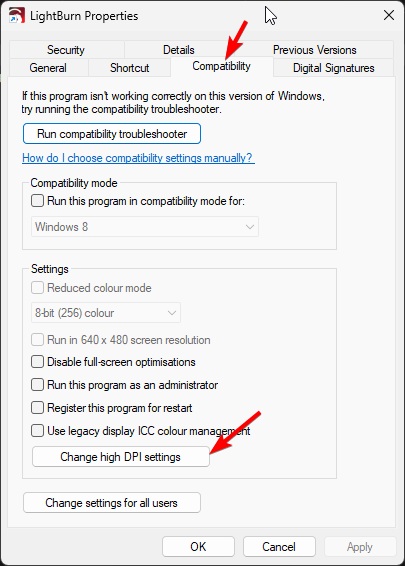
Okay. Got it. That is unchecked.
Shari
Understand.
Could you send us a screenshot of LightBurn 2.0 and the backups zip
Open Lightburn > Go to Preferences > Open Preference folder
In the preference folder right click the Backup folder and zip it
To support@lightburnsoftware.com please?
Screenshot and Zip folder sent ([#194133]
and ([#194128]
1 Like
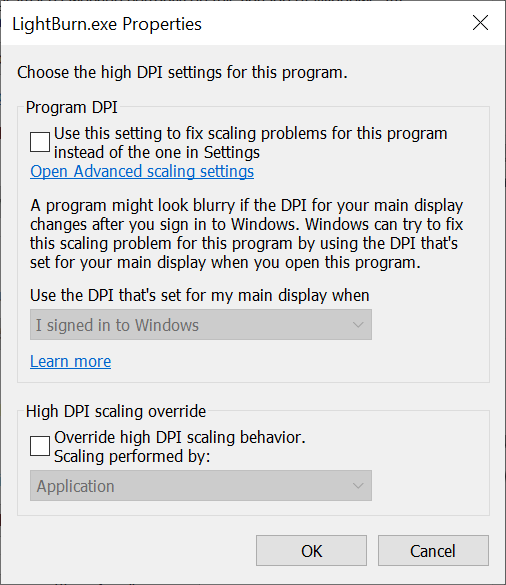
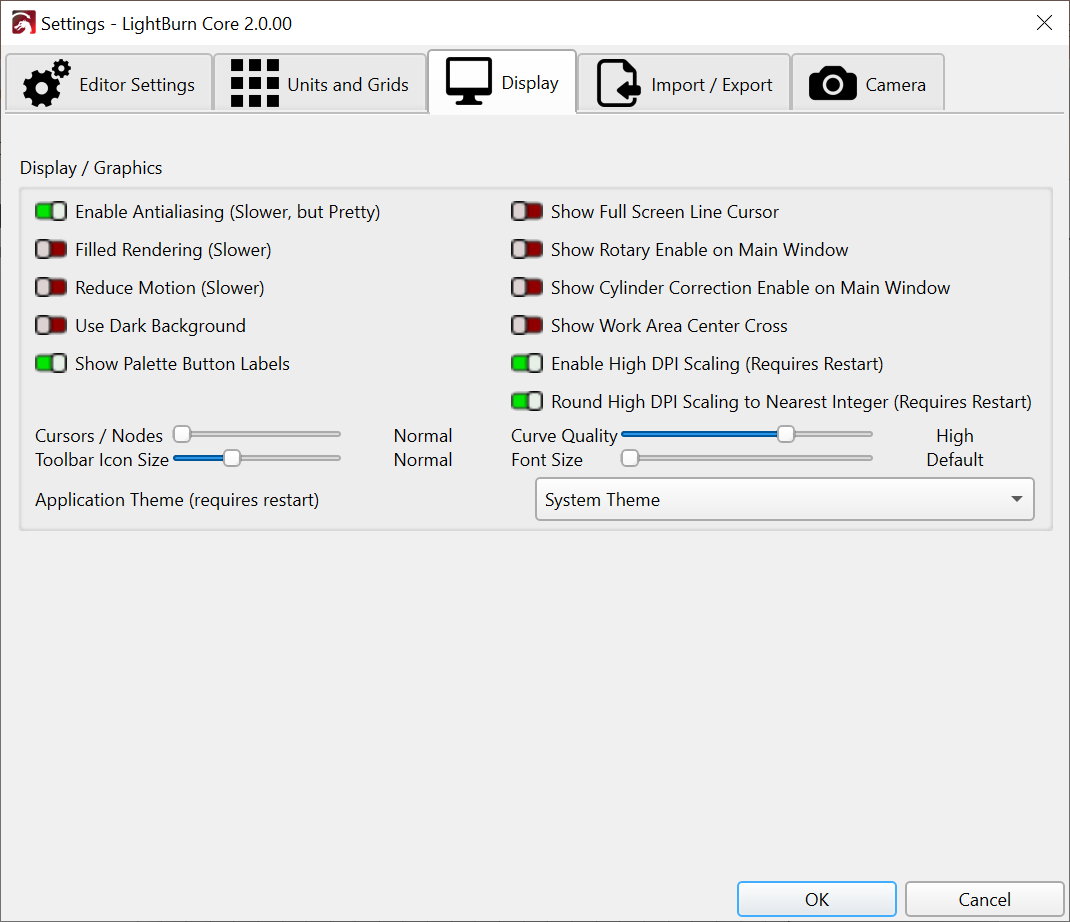
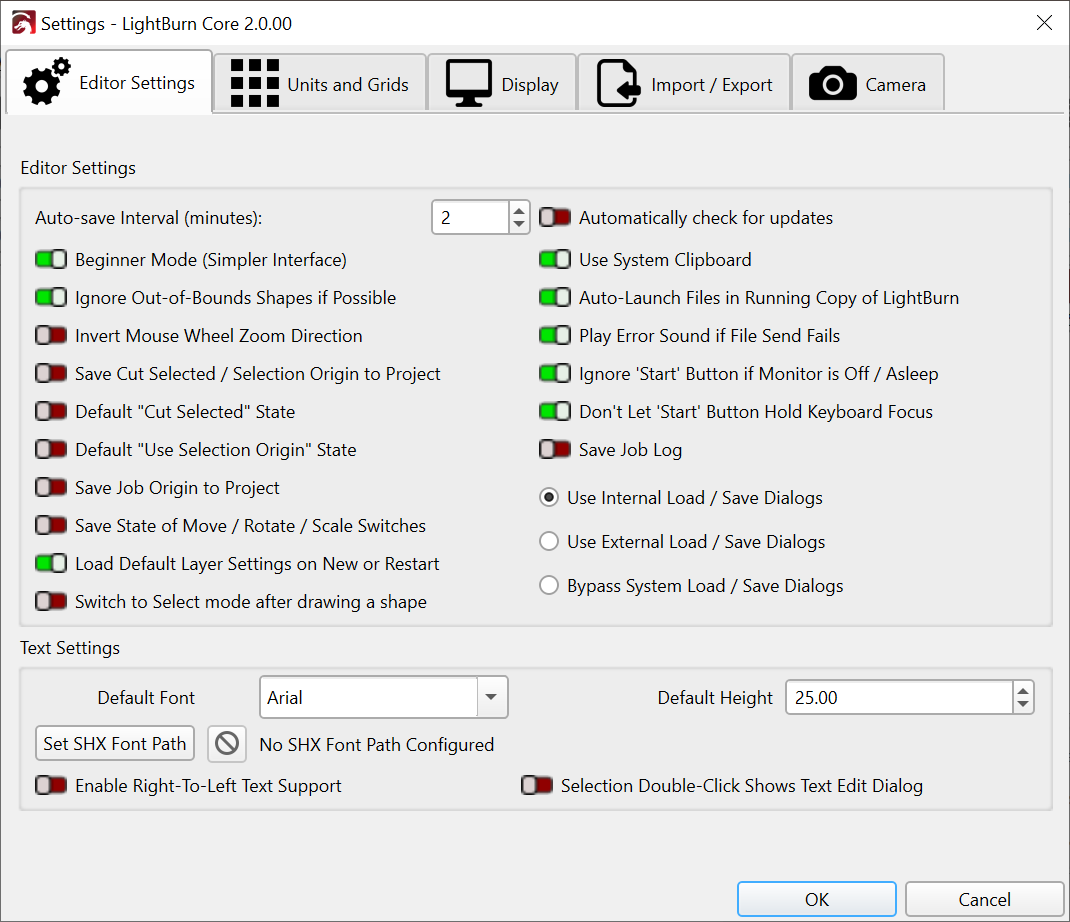
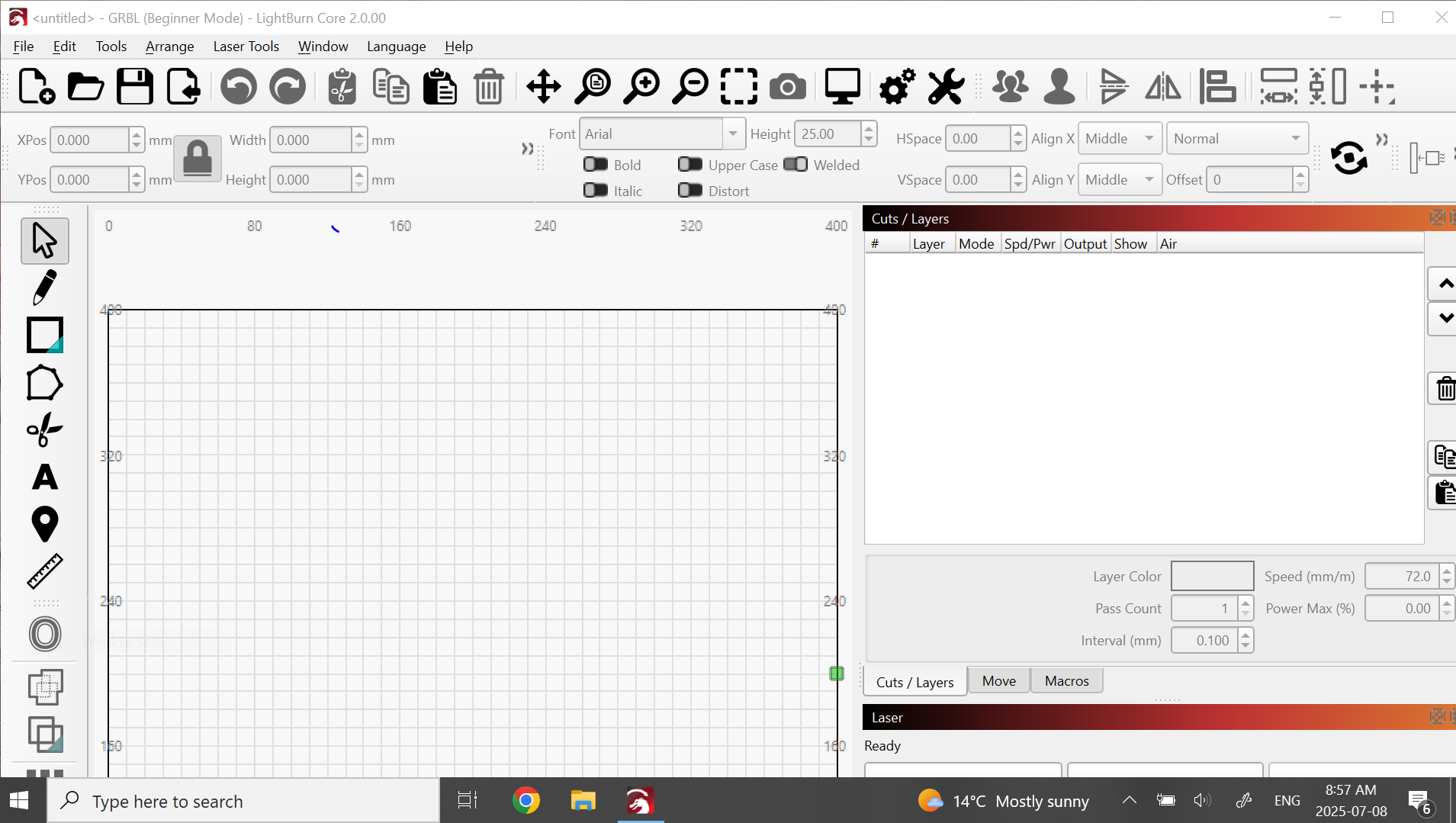
I am also having scaling issues. I have the following screenshots based upon the thread above. I can get more, if needed.
Hi Cheryl
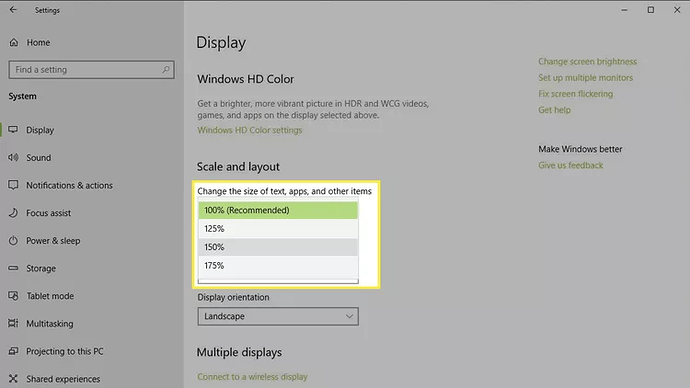
Navigate to Settings > System > Display.
Under “Scale and layout,” you’ll find the current scaling percentage
Can you tell us what it is set at?
1 Like
Resolution: This was my issue… all fixed since changing back to 100% (mine was at 150%)
I had the same thing happen and I fixed it. windows scaling no more than 125% other wise it gets to big.
In this case, if you wish to have independent control on scaling From Windows and LightBurn try this
a) set Windows scaling for your preference
b) navigate to Edit > Device settings
Display Tab
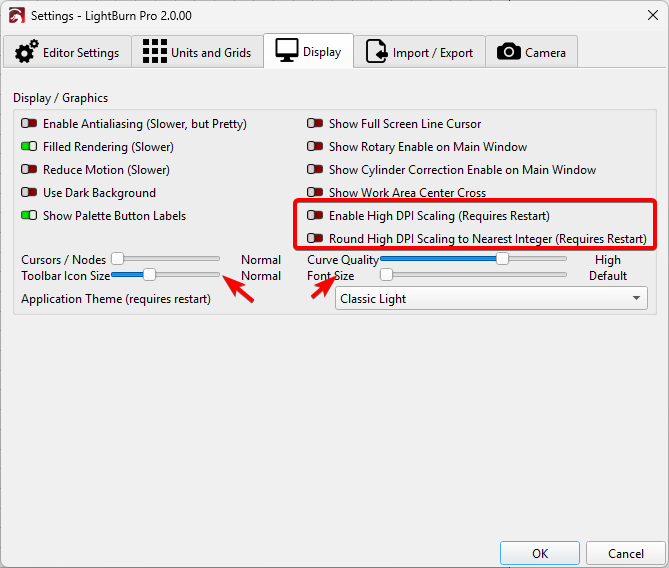
Disable both High DPI settings on Edit > Settings
Restart LightBurn
Now the font/Tool bar sliders will scale LightBurn to your preference independent of Windows Scaling:
Sorry, I hate to say it but I had the EXACT same issue when I installed the Beta. Which just caused me to uninstall it right away. I don’t get why the UI needed any updating. Now I can’t move the MOVE window to dock at the left side of the screen with Camera Controls. It’s very annoying.
all the lines in everything i draw are heavy and pixelated and fixing the scale issue didn’t fix it
Do you have a high res monitor with Windows scaling set higher then 100%? Try unchecking the 2 High DPS settings in Lightburn.
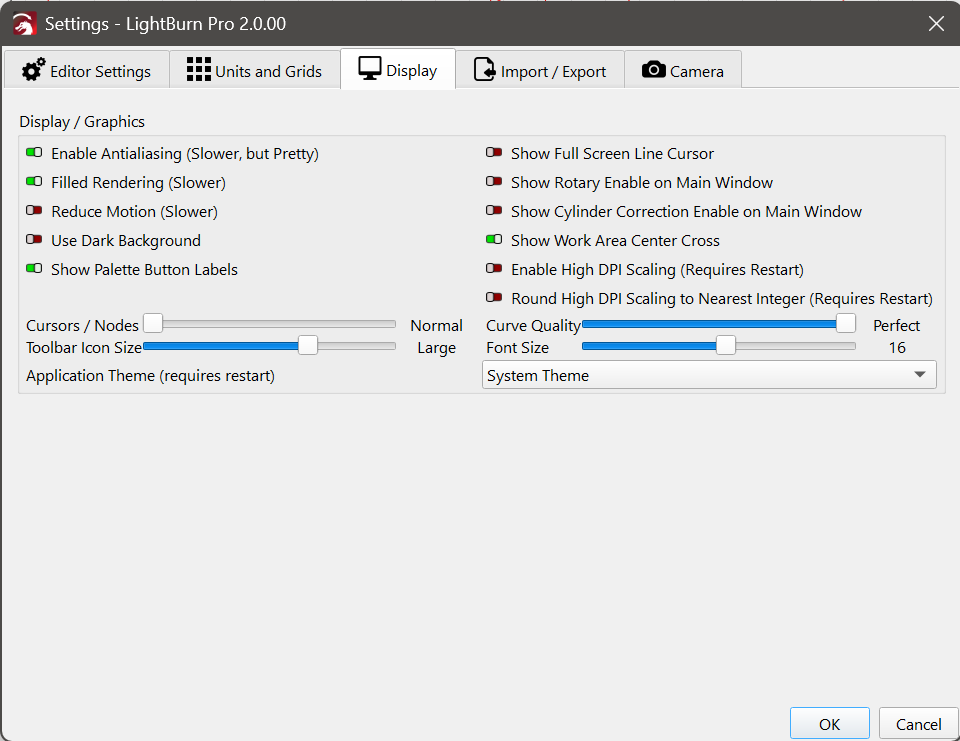
Thanks - this was the correct fix for me.
I have a 4K monitor (windows recommend scale is 150%) and that is needed to make all my desktop icons large enough… but this caused blurry / ghosted text in the menus, as well as larger than normal toggle switches in the Cuts/Layers window.
By de-activating those High DPI toggles as you described I was then able to use the sliders to dial everything back to correct size and so all appeared clear & crisp again.
1 Like
yes i did all that and got everything back to normal ish however cant figure the fat lines and how it looks pixelated
1 Like
Could you please post a screenshot for us?
just figured it out had to put tool bar icon size to very large and font size cranked all the way up to 24
1 Like
thank you for the input now i can sleep tonight lol
you guys rock keep up the great work
1 Like
I have the same issue, this is not resolving the problem unfortunately!