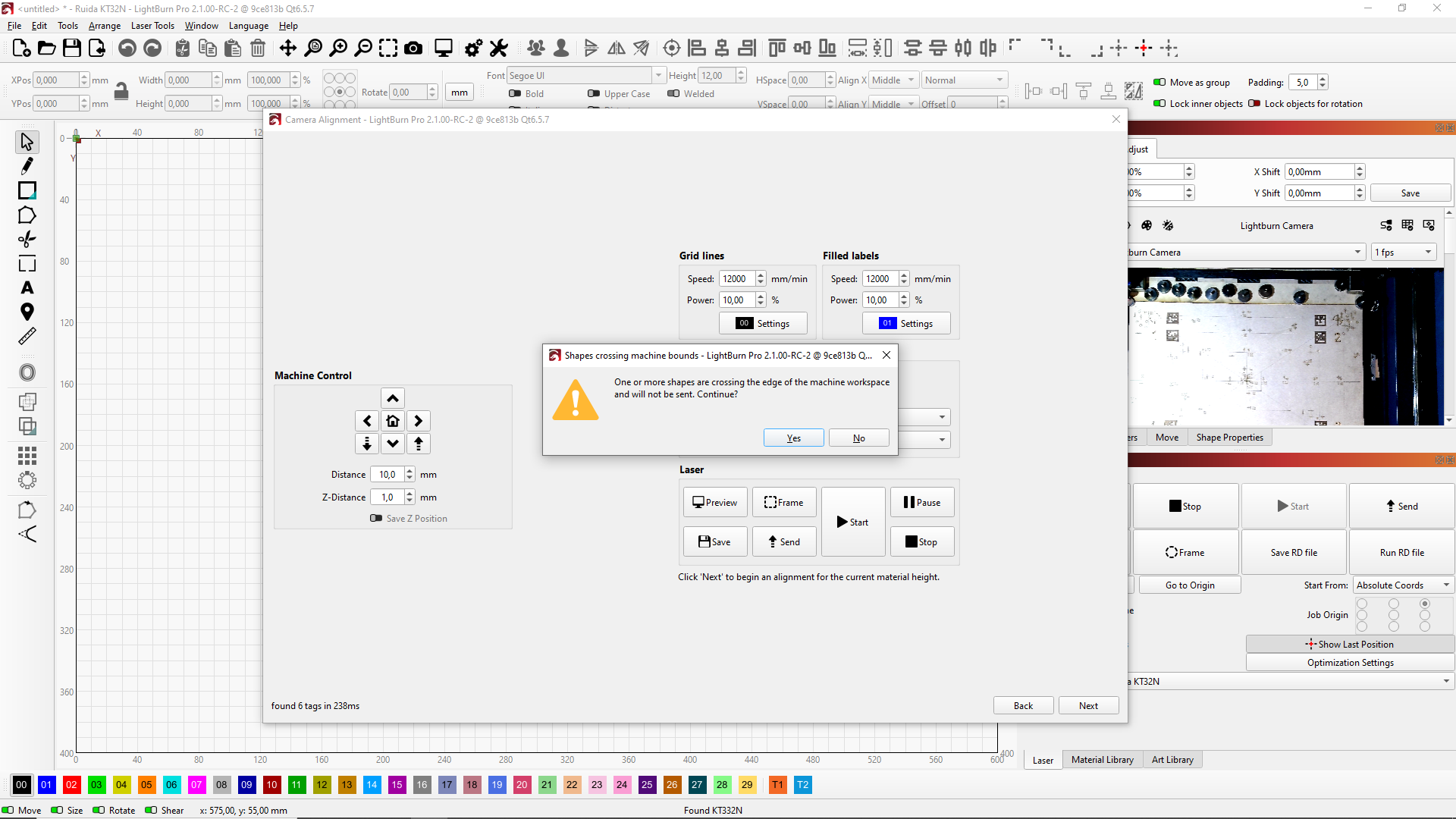
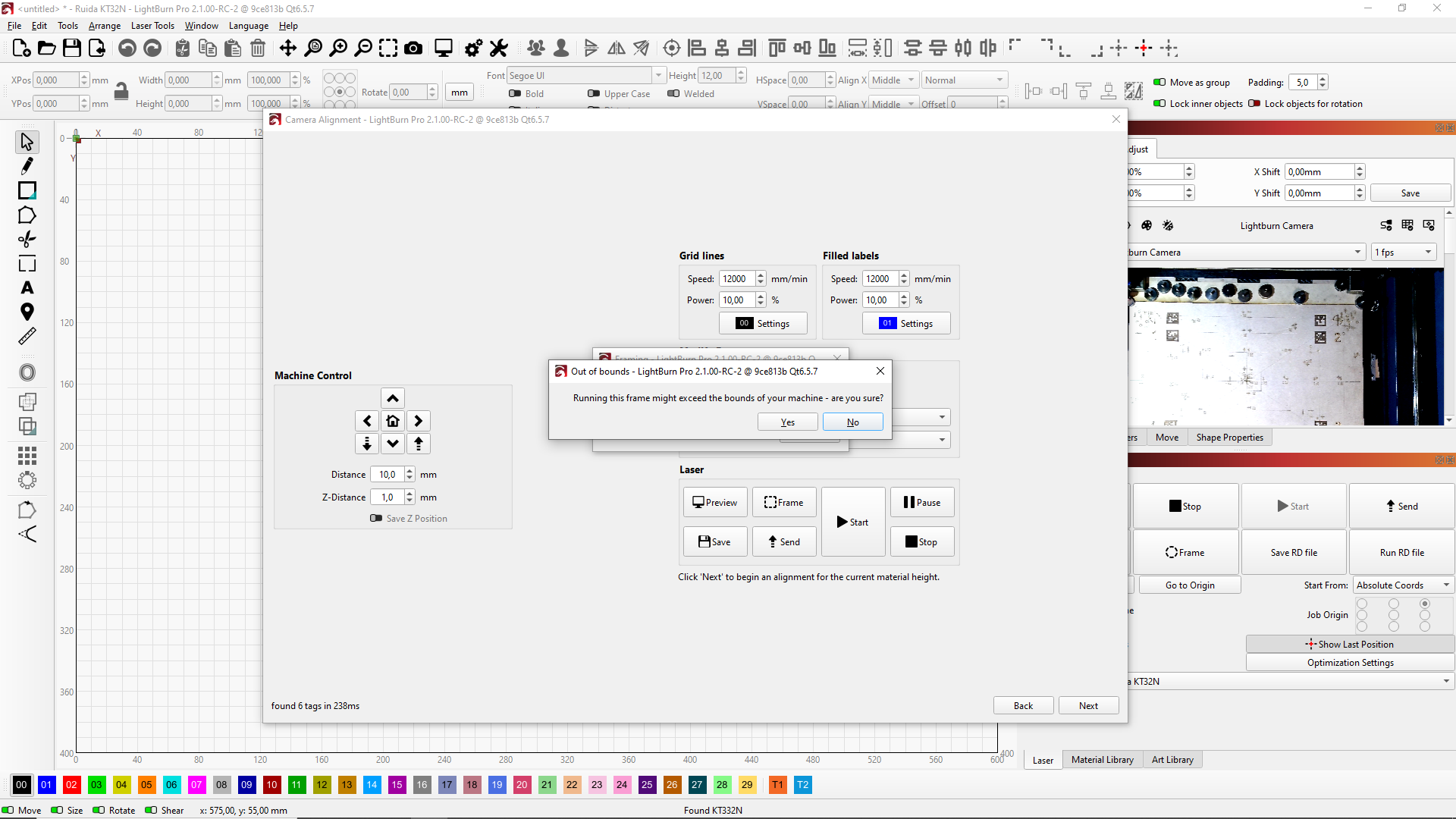
When choosing the largest possible target pattern for my machine (600x400mm) a warning pops up that the machine max has been exceeded, do you want to continue…? I can frame and the laser moves precisely within 600x400, but this window cannot be closed anymore, only with Ctrl+Alt+Delete which closes the current LB session.
I can repeat the error.


Thank you for the file. It confirms that we are asking a bit too much of the initial Quick Nest feature.
We have plans for “True Nesting”, but we cannot give a time frame for when we will start with it.
What I can tell you is that the Grid Array tool works great in this case, with these options:

1 Like
This file never even went to any laser.  It was just a project I was asked for, but it was never realized. As I found it during cleanup, I thought it was a nice task for the nesting feature
1 Like
I talked to Girish, and he confirmed that this is how Quick Nest is designed:
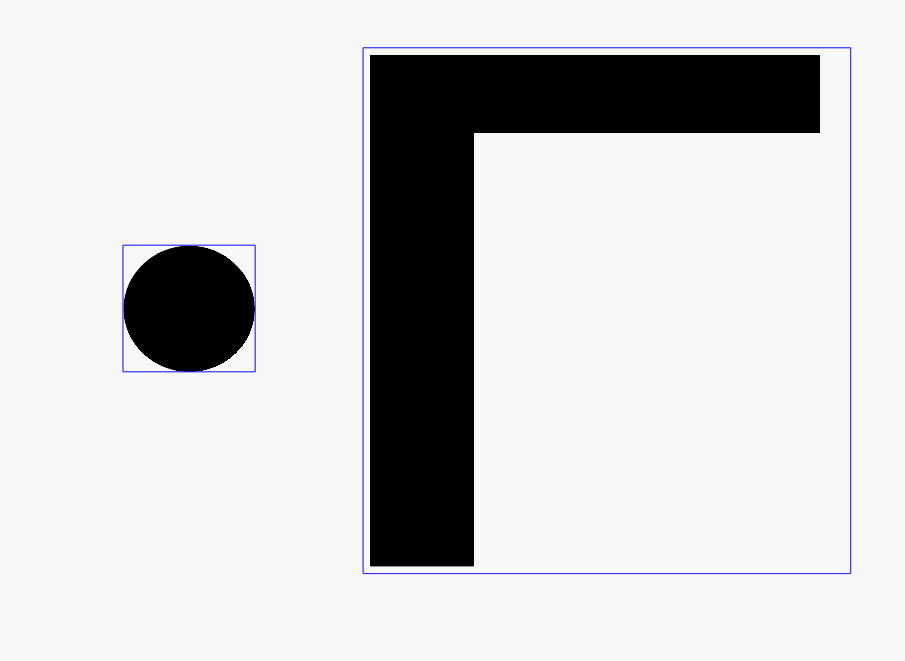
It is arranging the shapes only based on their bounding boxes. The “bounding box” is the smallest rectangle that fits around the shape.
Drawn in blue here. This means that Quick Nest will never consider placing the circle in the concave corner of the L-Shape:
I tried to be smart and suggested that we could use a rubber-band outline instead of a rectangular bounding box.
As you can imagine, it’s not quite as easy as it sounds
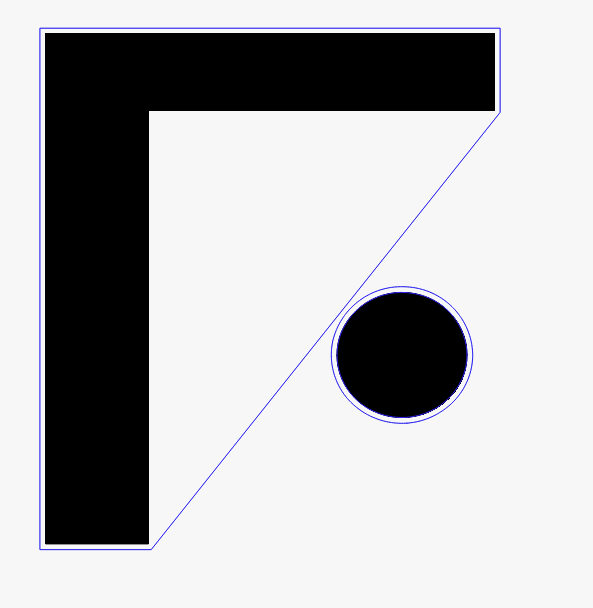
A new True Nesting algo is in the pipeline, and will actively search for valid positions to put the object based on the shapes true outlines.
1 Like
Until then, we can use Nesting to get started, then manually finish it off.
The minimum width of the “Laser” window has increased compared to version 2.0.5. I don’t like it.
I understand the nature of the Qt Framework that LightBurn uses, but I don’t know what is currently blocking the narrowing. Only one new option has been added, which does not have a very long name.
That’s correct. I can confirm this.
Are you using exactly the same font and text sizes in the settings, and does it look way worse on your side?
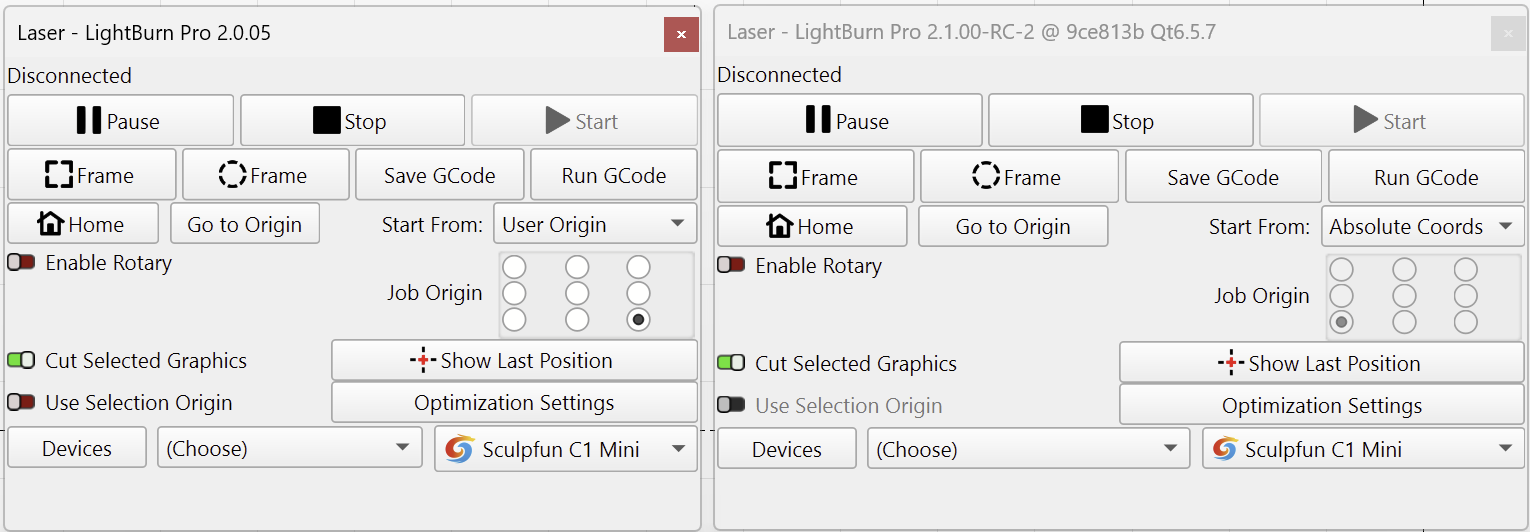
A lot of work has gone into making sure that the UI looks best on every possible screen resolution. What’s yours?
25" 2560 x 1440p / Windows 11 / 100% scaling / Language: English / High DPI: ON / Font & Icon size: 0.
The font and its size are the same. The differences in minimum width look the same as yours. I think that now the sizes/minimum sizes of individual elements are fixed, which is why it behaves this way. Reducing size the font and icons does not change anything. Enabling/disabling the High DPI option does not change anything.
I have a fairly large screen width, so the problem is not as big for me as it is for people with smaller screens and resolutions.
Some languages, such as Polish, have huge problems with the minimum width due to the length of the names in the original translation.
As a big fan of LightBurn, I even made corrected versions of the translation at one time so that the “Laser” window could be narrower.
My repo: GitHub - ahabuda/Lightburn-Tweak
About two years ago, I switched to English myself in order to have the native ability to set a narrow Laser window. I am afraid that in version 2.1.0, this will no longer be possible.
I am a member of the LightBurn community on Facebook, and I know that obscuring the view of the workspace is quite a big problem.
This is likely another reason why some of the buttons needed a larger padding area.
I’m not sure if you understood me. What I meant was that the Qt Framework blocks further scaling if something cannot be reduced any further because it would be cut off/hidden.
In some languages, phrases that are very short in English are much longer in other languages and block the window from being narrowed even further.
PS.:
Hence the problem that users with a screen resolution of, for example, 1368px, who use the Polish language, have the Laser window covering half of their screen.

Seeking a better workflow for the following topic: Paste in Place - inaccuracy
When trying to Lock several shapes:
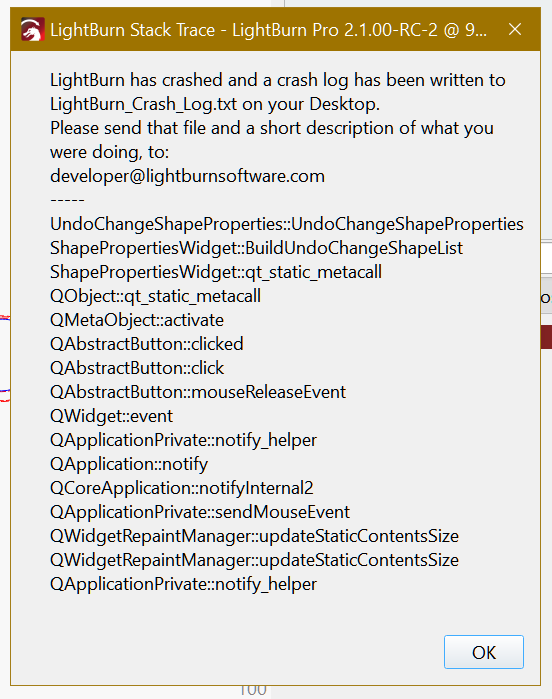
LightBurn_Crash_Log.txt (61.8 KB)
Not the original file, is a test and I don´t have a copy:
center_test_backup.lbrn2 (275.4 KB)
Either I haven’t formulated myself well enough or the topic hasn’t been “important” enough for LB, there has never been a solution to this inaccuracy, i.e. “Paste in Place” cannot be used for what it is intended for - (in my humble understanding)
As a start if you Copy the shape, Zoom in more you get more accuracy when mouse cursor changes at the center of the existing objects as per the docs - Pasted objects are centered at the location of your cursor at the time of pasting.
You can even Lock the existing objects and then use the Align Tools operations individually with the copied objects. In this case the order of selection doesn’t matter as the locked objects don´t move per Lightburn Align priority rules - If a single object in your selection is Locked, all objects are aligned to the Locked object.
…Yes, the 4 action options should be optional for individual shapes. I just messed with it today and couldn’t use it for my purpose. There is an option to lock individual elements in “Shape Properties”, but that locks everything for this shape.
Upon revisiting the changelog I´ve to add the new docked Camera Window with scrollbars and a bigger image when we resize the dock instead of the need to undock on previous releases.
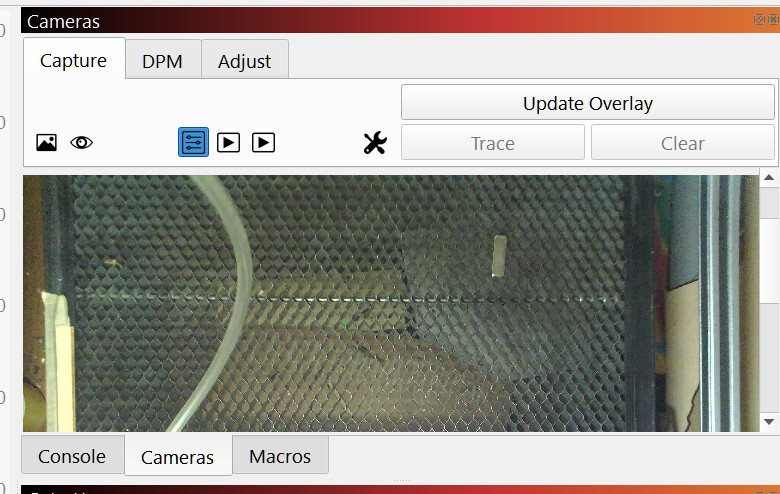
 to LightBurn team.
1 Like
This topic was automatically closed 30 days after the last reply. New replies are no longer allowed.