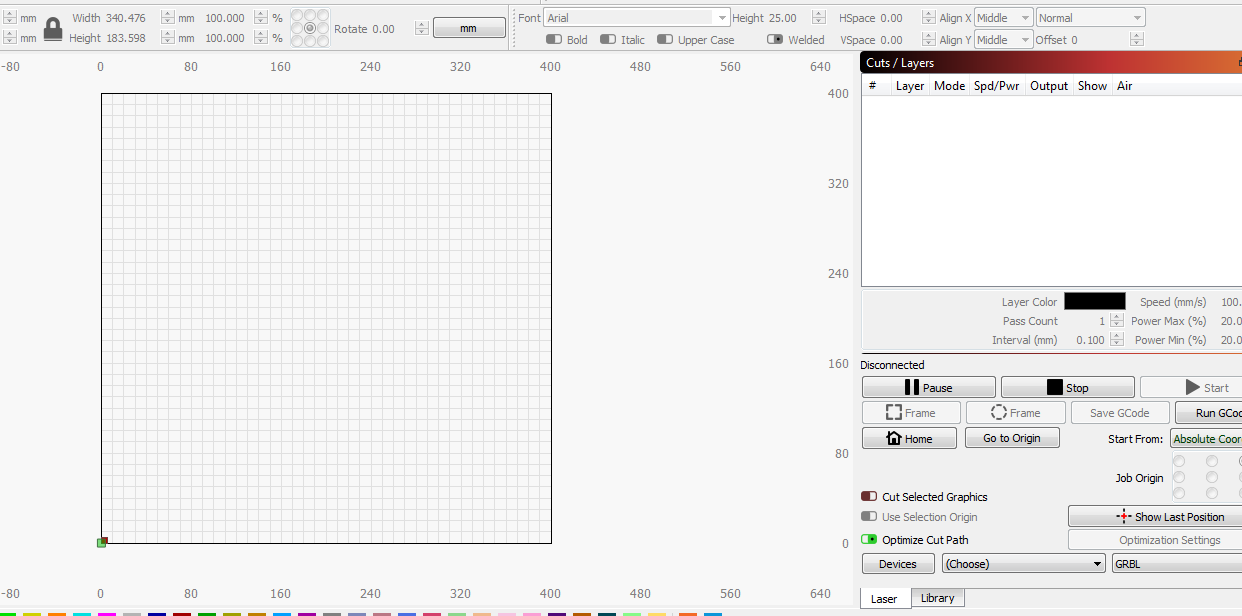
I’m guessing “Cancel” just immediately quits Lightburn…
Your problem is that you are probably using Windows and Windows needs drivers to connect to almost everything. So the best way forward would be looking for all the documentaion on the Ortur device you have regarding installing serial port drivers and verifying you have correctly done this by checking the device try in your operating system. Once you have the proper communications port created, Lightburn will probably let you continue.
Without the laser device ‘seen’ by your operating system, running LIghtburn is of little use.
@JLO1 I suggest you separate what seem like 2 separate issues you’re experiencing. One issue is about installing LightBurn. The other is connecting the device to your computer.
Let’s get your LightBurn setup so that you’re no longer dealing with that. You can add a device even if you’re not connected to it. When you get the option to add a device, choose to add one manually. Then follow this path:
Laser Controller - GRBL (not the other ones with GRBL in the name)
How to connect - Serial/USB
Name - Choose something easy to remember
Dimensions - 400 x 400
Origin - Front Left
Leave Auto-home toggled on
Finish
This should get LightBurn up and running. After that, send a screenshot of your whole screen.
@berainlb the OP can not get to that menu because the OP gets sent directly to the “Setup device” dialog( see picture the OP posted ) and both options( Cancel nor Go Back ) results in exiting from Lightburn… Hacking the prefs.ini might fake Lightburn into starting but why bother when the OP NEEDS to get the device setup in the OS to use Lightburn?
The second screenshot looks like @JLO1 clicked on “Find My Laser” to get the that screenshot. This doesn’t seem to be an issue with LightBurn creating an impossible situation but I’m sure OP will let use know.
The idea of trying to separate the concerns is to do a couple of things:
getting LightBurn installed can get us additional information
it’s possible that LightBurn cannot find the laser but might otherwise work
getting past the installation of LightBurn will allow the conversation to move to the next step of problems. Right now these are getting munged.
I believe you have that incorrect and the OP posted the first shot which states you either hit YES or you exit. The 2nd screen shot is a result of clicking on the YES button.
You can attempt to work around the startup problems in LIghtburn and I had started to post things to try and make Lightburn think there was a configuration already but then I realized it would not help this user since the problem resides in their OS not recognizing the machine is connected to a USB port. Fixing that is required then Lightburn most likely works as usual.
There should be a --install-offline type of commandline for installing or a clicky button for Windows users.
Sorry for the delay, guess I should have read the fine print on how many times you can post on your first day. Thanks for the info, after i process it all I will get back with you and let you know how I am progressing.
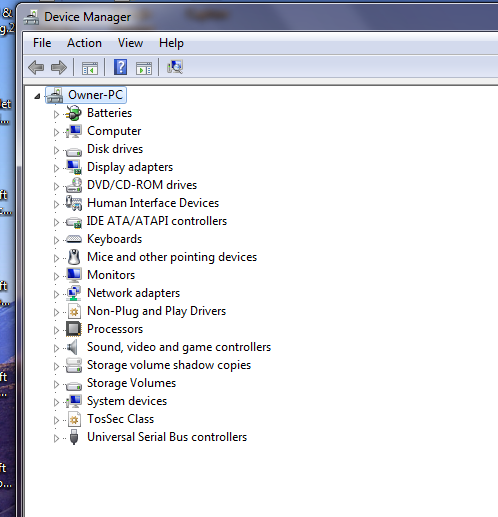
Ok Guys, Here is the latest: The Manual load is done and I am sending a screen shot that shows the port path can not be chosen (nothing their to chose) I checked and the driver software did install on my machine but I don’t know anymore than the laser is still dead to this laptop
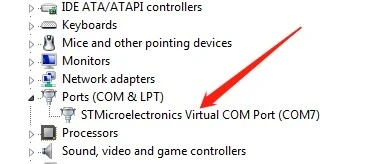
You are looking specifically for Ports. Should look something like this:
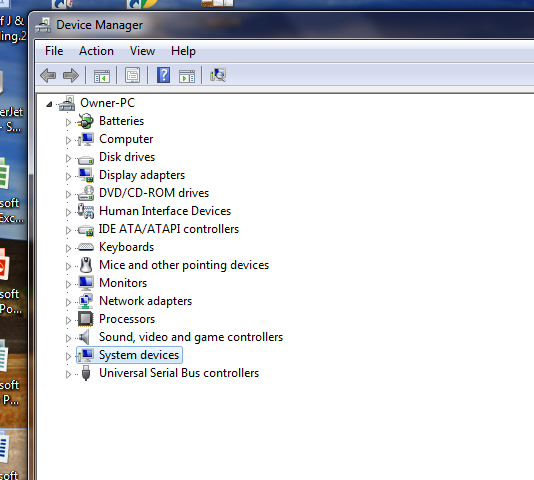
You may need to turn on View->Show hidden devices if you’re not currently connected.
Specifically, if you do not see any ports defined it’s likely that you don’t have the driver installed properly.
Go back to Ortur website and download the STM Micro v1.5 driver that matches your installation (32-bit or 64-bit). Complete the installation and attempt to reconnect.
Ok Round ? What round is it anyway? I checked the device info and tried to get the laser to connect by no go. I also check the STM Driver and as you can see from my screen shot it is on my machine.
Have you turned the laser on when you attach to USB?
Have you tried a different USB port?
Are you plugging into directly to computer or to a hub? Try attaching to computer directly if you haven’t tried.
Is this a known good USB cable?
Do you hear a ding-dong USB connection noise when connected?
If you haven’t tried, can you remove all other USB devices before plugging in?
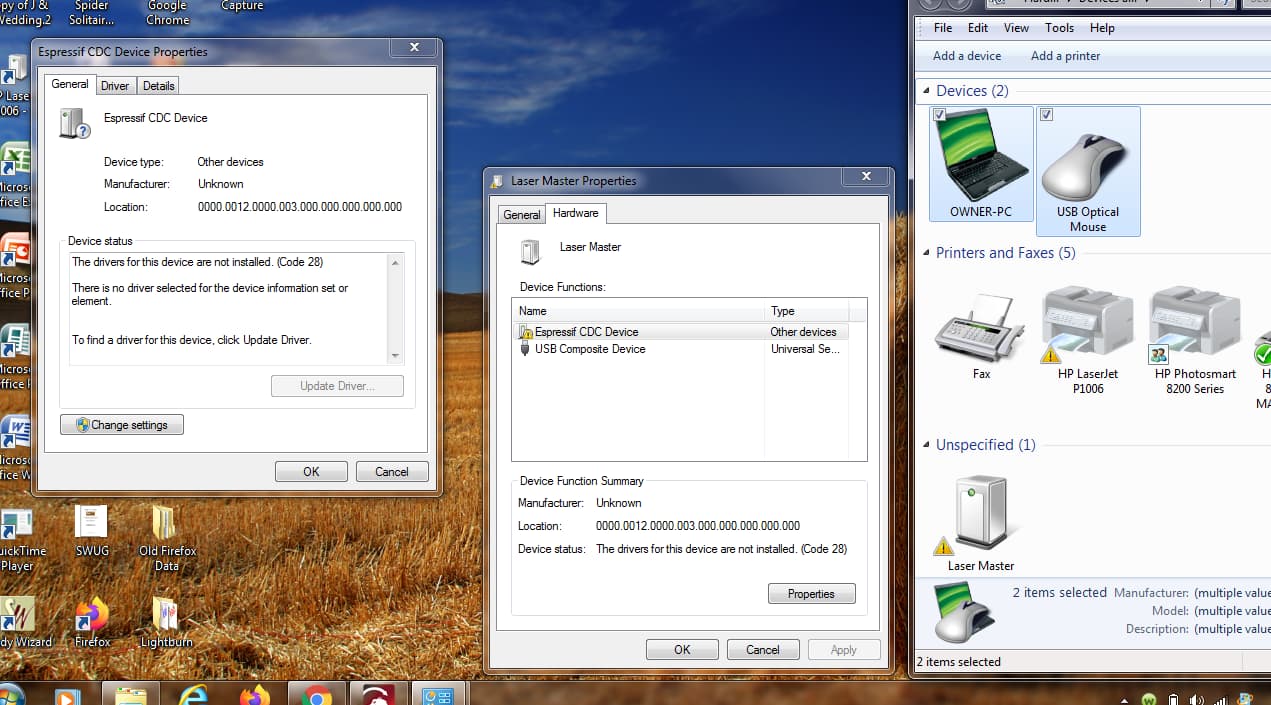
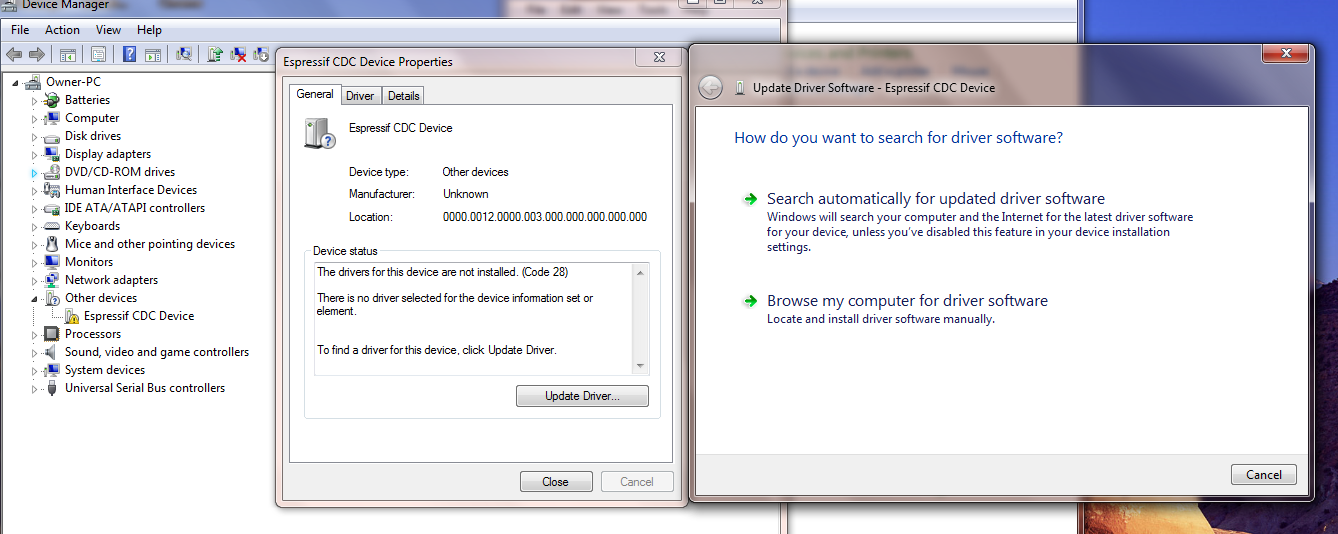
As for the screenshots you’re showing, I’m curious what those are. Is the Laser Master actually the Ortur that you’re connecting? If so, not sure why or how it’s showing up there. The Espressive CDC Device I don’t believe is the Ortur. That’s associated with ESP32 devices. Do you have some other device configured that might be interfering?
In device manager, have you enabled (Show hidden devices)?
Every time I try something new, I plug in and turn on the laser. More info and picks. The port does show up when plug in, the device manger pic is attached, It says it has no drivers and it went online and tried to find a fix and did not.
EDIT START
Check OrturTech’s answer below. I’m updating this as to not go down a rabbit-hole but no need to attemp this.
EDIT END
I suspect it’s the Espressif CDC that’s causing the issue. Unless Ortur has changed the chipset that they use on the Pro. Maybe some Pro users can pitch in here but nothing in the documentation seems to indicate this.
Are you able to completely remove the Espressif CDC driver?
So this has been bugging me so after running another post about Ortur connectivity issues I wanted to see what else I could find.
I found a random product description page about 1.8 series Ortur Laser Master 2 Pro S2 that it can support ESP32 MCUs.
Ortur Laser 1.8 firmware, qualified for ESP32 MCU, optimizes the motion algorithm, and increases the maximum stepper motors speed from 4000mm/min to 10000mm/mm
I don’t know if this means that Ortur has changed MCU in these units or if both MCUs are present in the MB. But It’s likely this is the cause of the connectivity issues since @JLO1 has been installing the STM driver. I don’t see anything in publicly available Ortur documentation that describes this.
@JLO1, did your laser come with a disc or a link to download additional software? If so, it’s possible the driver was included there.
Alternatively, there are a couple of widely used USB chips that are coupled with ESP32 but it’s not clear which one you would need. Can you check the “Details” tab of the device properties on the Espressif CDC? Or check on your son’s computer if that is available.